Two-Factor Authentication (2FA)
Norce Commerce supports two-factor authentication (2FA) for the Admin UI, adding an extra layer of security to the login process. When 2FA is enabled, users must verify their identity with a time-based one-time password (TOTP) from an authenticator app in addition to their regular username and password.
How it works
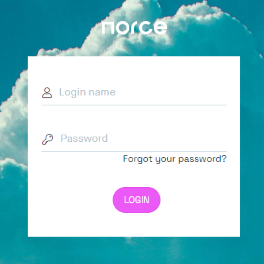
When 2FA is activated for your client, logging in to Norce Admin becomes a two-step process. After entering your username and password as usual, you are redirected to a verification page where you must enter a one-time passcode generated by an authenticator app on your mobile device.
Norce uses Google Authenticator as the 2FA method. Other TOTP-compatible authenticator apps (such as Microsoft Authenticator or Authy) may also work, since they follow the same standard.
First-time setup (enrollment)
The first time you log in after 2FA has been activated, you are taken to an enrollment page. This page displays a QR code that you scan with your authenticator app. Once scanned, the app starts generating time-based passcodes that refresh every 30 seconds.
To complete enrollment:
- Open your authenticator app on your mobile device.
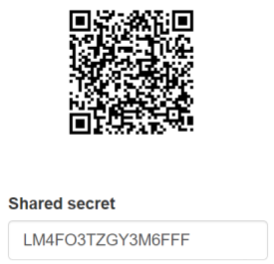
- Scan the QR code displayed on the enrollment page. If you cannot scan the code, you can enter the setup key manually.
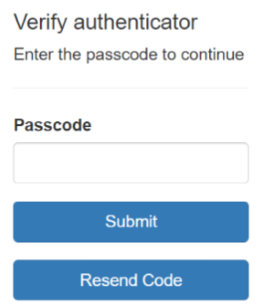
- Enter the passcode shown in your authenticator app into the verification field.
- Click verify to complete the enrollment.
After successful enrollment, you are signed in to Norce Admin.
Subsequent logins
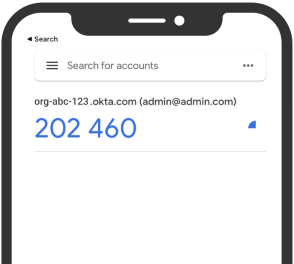
Once enrolled, you skip the enrollment step on future logins. After entering your username and password, you go directly to the verification page where you enter the current passcode from your authenticator app.
Switching clients
If your Norce setup includes multiple clients and you switch to a client that requires 2FA, you will be asked to verify with your authenticator app again — even if you were already verified on the previous client. This ensures that each client's security requirements are enforced independently.
Activating 2FA
Two-factor authentication is activated at the client level through a client setting. This is typically done by a super user or Norce representative.
Note: When 2FA is activated for a client, it applies to all users on that client. Individual users cannot opt out, and it is not possible to enable 2FA for only some users.
To request activation, contact your Norce representative or your organization's super user.
Things to know
Authenticator app required
Each user needs an authenticator app installed on their mobile device. Google Authenticator is the officially supported app, but other TOTP-compatible apps work as well. The app is free and available for both iOS and Android.
Enrollment is tied to your login name
The 2FA enrollment is linked to your Norce login name. If your login name changes, you may need to re-enroll.
Lost access to your authenticator app
If you lose access to your authenticator app (for example, if you lose your phone or switch devices), you will not be able to log in. Contact your organization's super user or Norce support to have your enrollment reset so you can set up 2FA again on a new device.
2FA and SSO
Two-factor authentication as described on this page applies to the standard Norce Admin login. If your organization uses Single Sign-On (SSO), 2FA is typically handled by your identity provider (for example, Microsoft Entra ID) rather than within Norce Admin.