Using the Assistant MCP Server
Overview: The Assistant MCP (Model Context Protocol) server provides AI-powered knowledge and code examples for Norce Commerce development directly in your preferred AI environment.
What is Norce Assistant MCP?
The Assistant MCP server acts as a bridge between AI assistants (like Claude Desktop, VSCode extensions, or other MCP-compatible tools) and Norce Commerce documentation and knowledge base. It enables you to get contextual help, code examples, and technical guidance without leaving your development environment.
Server URL: https://norceassistant.mcp.kapa.ai and https://norceassistant2.mcp.kapa.ai
Authentication Methods
The Assistant MCP server supports two authentication methods depending on your use case:
1. Google Authentication (Recommended for Personal Use)
- Use case: Individual developers using desktop AI clients
- Setup: Automatic redirect to Google OAuth on first connection
- Benefits: Easy setup, no API key management required
- Host:
https://norceassistant2.mcp.kapa.ai
2. API Key Authentication (For Development Tools, applications or agents)
- Use case: Development tools, applications, automated agents
- Setup: Requires a valid API key in request headers
- Benefits: Programmatic access, suitable for CI/CD and automation
- Host:
https://norceassistant.mcp.kapa.ai
Setup Instructions
Claude Desktop Setup (Google Auth)
Install Claude Desktop if you haven't already
Configure MCP connection in Claude Desktop settings
Add Norce Assistant server:
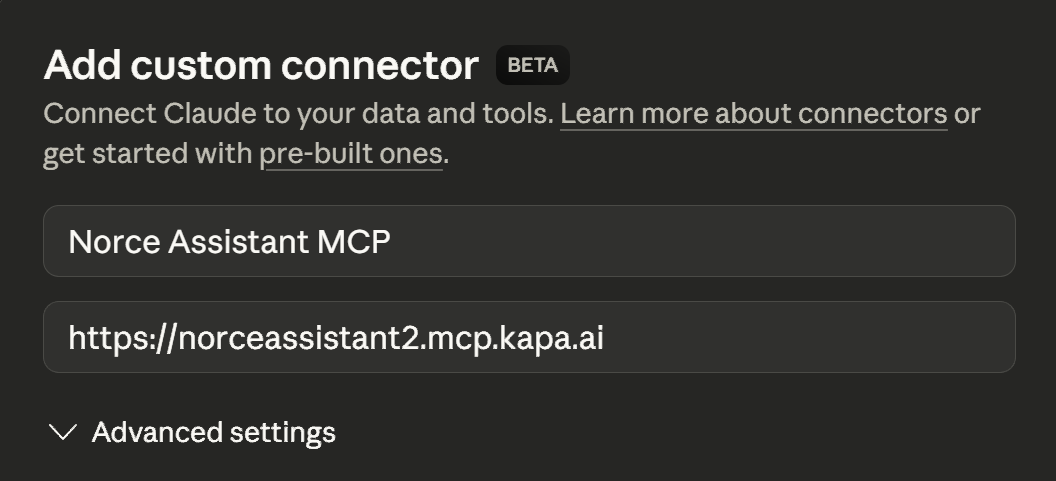
First connection: You'll be redirected to Google for authentication
Grant permissions to access the Norce Assistant service
VSCode/Development Tools Setup (API Key)
For programmatic access or development tools, use API key authentication:
{
  "servers": {
    "norceassistant_server": {
      "transport": "http",
      "url": "https://norceassistant.mcp.kapa.ai",
      "headers": {
        "Authorization": "Bearer YOUR_API_KEY_HERE"
      }
    }
  }
}
Note: Replace
YOUR_API_KEY_HEREwith your actual Norce Assistant API key. Contact your Norce support for API key access.
Using Norce Assistant
Once connected, you can:
- Ask technical questions about Norce Commerce APIs
- Request code examples for specific integration scenarios
- Get help with troubleshooting common development issues
- Access documentation without switching contexts
Example Queries
- "How do I authenticate with the Norce Commerce API?"
- "Show me an example of creating a product using the Admin API"
- "What are the required fields for a customer registration?"
- "Help me troubleshoot a 401 error in my API call"
- "Help me build an application that connects to Norce Commerce and..."
Troubleshooting
Connection Issues
- Verify the server URL is correct:
https://norceassistant.mcp.kapa.aiorhttps://norceassistant2.mcp.kapa.ai - Check your internet connection
- Ensure your MCP client supports HTTP transport
Authentication Problems
- Google Auth: Clear browser cache and retry authentication
- API Key: Verify the API key is valid and properly formatted in headers
- Check that the Authorization header format is:
Bearer YOUR_API_KEY
Performance Tips
- Keep queries specific and focused for better responses
- Include relevant context about your development environment
- Use follow-up questions to dive deeper into topics
Additional Resources
Need Help? If you encounter issues connecting to the Norce Assistant MCP server contact technical support.