Price list types and priority
Price list types help you organize price lists and control how some pricing features behave in Norce. This page explains what price list types are, where they are used, and how type priority changes which price Norce selects.
What price list types are
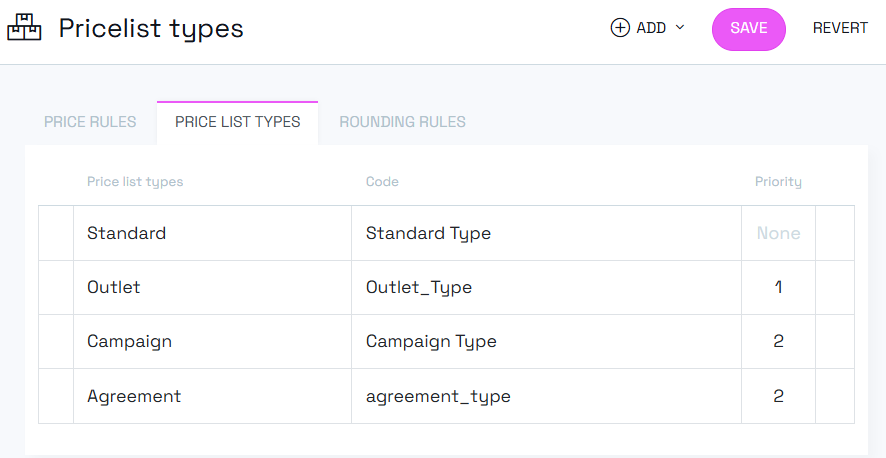
A price list type is a classification assigned to a price list. A price list can have one type, or no type at all.
Price list types are managed under Pricing > Settings > Price List Types. The available types are built-in options in Norce that you can enable for your client. For each enabled type, you can edit the name, code, description, and priority.
Common examples of price list types are:
- Standard
- Campaign
- Agreement
- Reseller
The type name itself does not control the pricing logic. What matters is how that type is used in configuration. As you add them, you can rename them to what fits your solution better.
Where price list types are used
Price list types can be used in several parts of Norce pricing:
- Price list organization: They make it easier to filter on and identify different kinds of price lists.
- Company discounts: You can limit a company discount rule so it only applies when the best price comes from a certain price list type.
- Rounding rules: You can create rounding rules that apply only to price lists of a certain type.
- Type priority: You can control which group of price lists is evaluated first when Norce resolves the best price.
How type priority works
By default, Norce evaluates all eligible price lists and returns the lowest valid price.
When you use type priority, Norce evaluates eligible price lists in groups based on the priority value on the price list type:
- Norce starts with the highest-priority group, where
1is evaluated first. - Within that group, Norce still applies normal best-price logic and finds the lowest valid price in the group.
- If that group does not return a price for the product, Norce continues to the next priority group.
- The first priority group that returns a price wins.
This means a price from a higher-priority type can be selected even if a lower-priority type would have returned a lower price.
Important rules
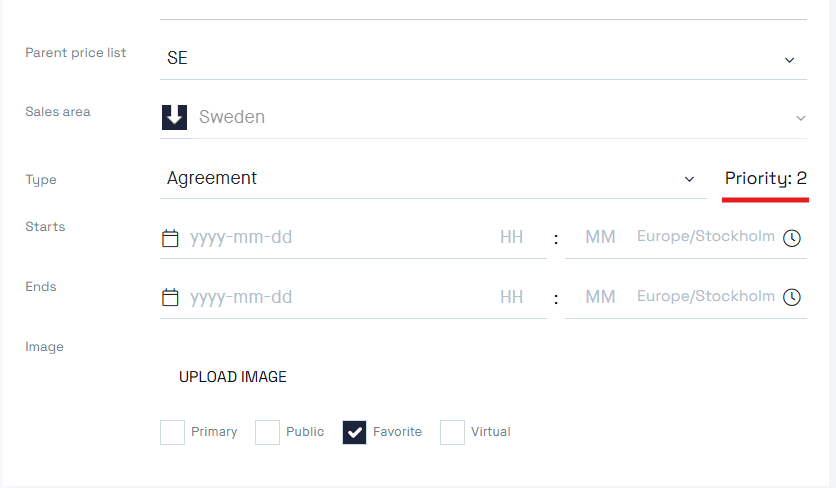
- Multiple price list types can share the same priority value.
- Types with the same priority are evaluated together as one group.
- A type with no priority is treated as the lowest effective priority.
- A price list without any type is also treated as the lowest effective priority.
When to use type priority
Type priority is useful when the commercially correct price is not always the lowest price.
This is common in B2B scenarios. For example, a customer may have a project agreement or customer-specific agreement that should take precedence over a public campaign, even if the agreement price is higher. That higher price can still be correct because it may include specific terms, services, or commitments.
Without type priority, that behavior often has to be controlled outside Norce. With type priority, you can configure the precedence directly in Norce.
Example
Assume you have these price list types:
| Type | Priority |
|---|---|
| Agreement | 1 |
| Campaign | 2 |
| Standard | 2 |
Campaign and Standard share priority 2, meaning Norce treats them as one group and returns the best price found across both types before moving on.
A customer is connected to an agreement price list, a campaign price list, and a standard price list. The prices for two products are:
| Product | Agreement | Campaign | Standard |
|---|---|---|---|
| Product A | 1 200 SEK | 900 SEK | 1 000 SEK |
| Product B | — | 750 SEK | 800 SEK |
Product A — Norce checks priority 1 (Agreement) first and finds a price of 1 200 SEK. Because a valid price was found in this group, Norce stops and returns 1 200 SEK. The campaign and standard prices are never considered, even though they are lower.
Product B — Norce checks priority 1 (Agreement) first but finds no price. Norce then moves to priority 2 and checks both Campaign and Standard together. The best available price across that group is 750 SEK (Campaign), which is returned.
Manage price list types
To work with price list types in the admin:
- Go to Pricing > Settings > Price List Types.
- Click Add to enable one or more available types.
- Open a type to edit its Name, Code, Description, and Priority.
- Save your changes.