Product relations import and export
Use the product relation export/import flow when you want to update many relations at once, for example when activating, deactivating, or changing relation types in bulk.
Export product relations

- Open the product list and filter to the products you want to work with.
- Select Tools.
- Choose "Export relations" to get a timestamped Excel file downloaded, in a pre-defined format. Use the export as your base file before importing changes.
Import product relations
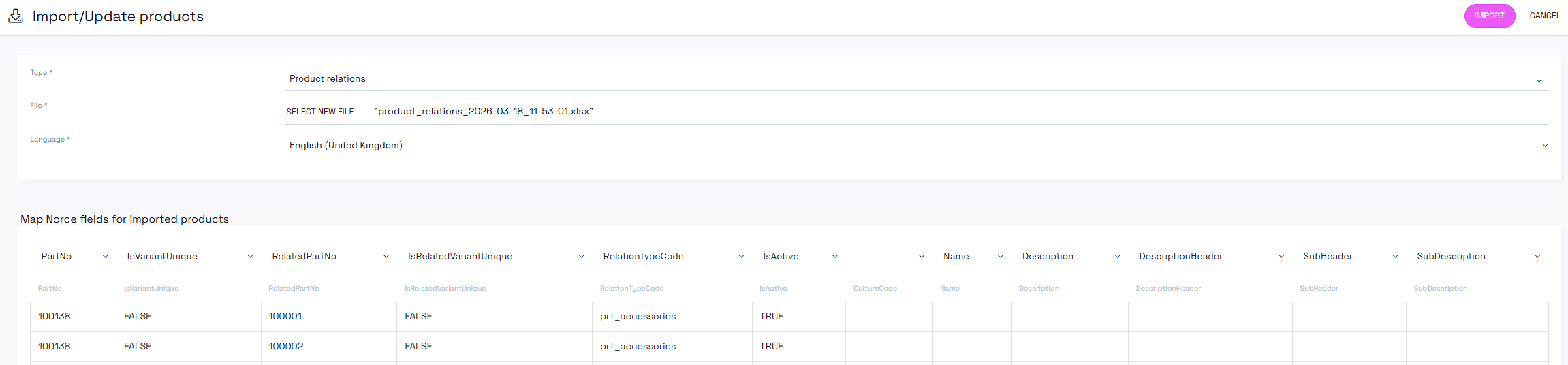
To import relation changes:
- Go to Integrations > Import.
- Select import type Product relations.
- Upload your edited Excel file.
- Review column mapping in the preview.
- Confirm and run the import.
Required and optional columns
See Product relation import columns for details.
Important behavior
- To remove a relation, set IsActive to
falsefor that relation row. - Deleting a row from the Excel file does not remove the relation in Norce.
- CultureCode is shown in exported files, but the import language is selected in the import UI.
- Import one language at a time. Do not expect multiple languages in one import run.
- If you are not updating text fields (
Name,Description, and related fields), set them to Ignore in mapping to avoid unintended overwrites.
When to use text fields
The culture-specific text fields are optional and mainly for advanced use cases where relation list text in API responses needs to be overridden. In most imports, these fields are not needed.
Related articles
- Product relations
- Excel Import
- Product relation import columns
- Product relations via API — for programmatic listing, import, and removal instead of Excel