Delta Configuration
Delta configuration controls which data changes Norce tracks. When a tracked change occurs, the affected product, customer, or company is marked as changed and will appear in the next delta export or feed.
Delta configuration is found under Integrations → Events, where it appears as separate tabs for Products, Customers, and Companies.
Before using delta feeds in production, set up delta configuration first. Without it, delta requests will return no data or treat everything as changed.
Step 1 — Enable delta tables
Delta tracking must first be enabled at the client level. Go to Settings → Client → Settings and enable the last checkbox under the Products section.

Step 2 — Configure which changes to track
Once delta tables are enabled, go to Integrations → Events → Delta Configuration to configure which data changes trigger a delta update.
Each tab (Products, Customers, Companies) lists entities — the underlying data tables — that can be tracked. For each entity you can enable:
- On Insert — track when new records are added
- On Update — track when existing records are modified. You can specify exactly which fields should trigger a change.
- On Delete — track when records are removed
Some entities support additional filters to narrow down which changes are relevant. For example, you can filter category changes to only track primary category assignments and ignore secondary ones.
Norce has about 30 data tables with many fields that can be tracked. Only enable the entities and fields you actually need — tracking too many can significantly impact performance.
Example: product delta configuration
This example shows a typical setup for a solution using product feeds with a search engine.
Product and SKU
tClientProductSku, andtProductCulture
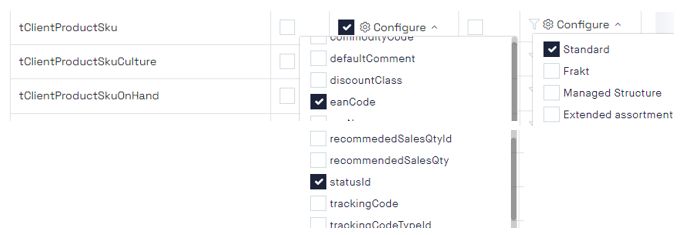
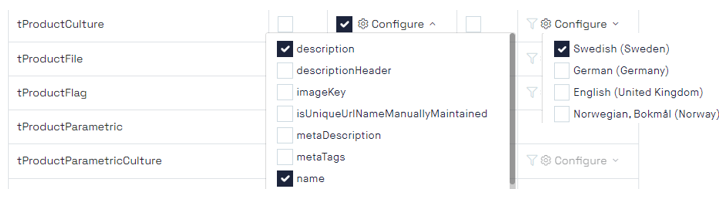
Configuration: Update on: name, description, statusId, eanCode. Insert: disabled.
Notes: New products can wait for the next full feed.
Prices
tClientProductSkuPriceList
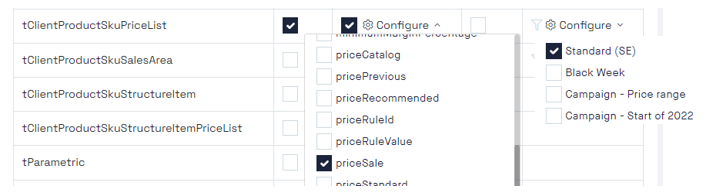
Configuration: Insert and Update enabled for Standard SE price list only.
Notes: Triggers ProductStatus delta feed.
Stock
tClientProductSkuOnhand
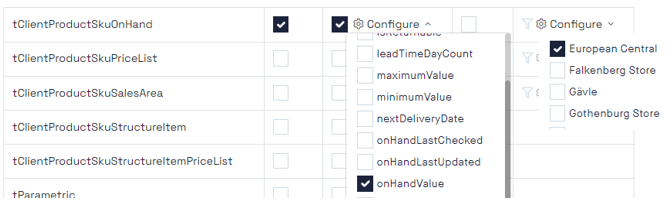
Configuration: Update on onHandValue for European Central warehouse.
Notes: Triggers ProductStatus delta feed.
Flags
tProductFlag
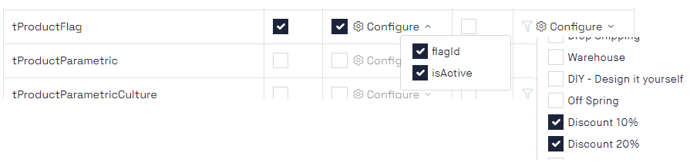
Configuration: Insert and Update on "Discount 10%" and "Discount 20%" flags.
Common product entities
| Entity | Typical use |
|---|---|
tClientProductSku, tProductCulture | Content and status changes → Product delta feed |
tClientProductSkuPriceList | Price changes → ProductStatus delta feed |
tClientProductSkuOnhand | Stock changes → ProductStatus delta feed |
tProductFlag | Flag changes → Product or ProductStatus delta feed |
For a full reference of all configurable entities and fields, see Norce Event Settings — SKUChangedNotification.
Customer and company delta configuration
The Customers and Companies tabs work the same way as the Products tab — enable Insert, Update, and Delete per entity, and optionally add filters.
Customer and company delta configuration is not commonly used in modern implementations. The recommended approach is to use customer and company event types directly, which provide better control over change tracking.
Tips
- Start conservative — enable only what you need, then expand if delta exports are missing expected changes.
- Test before go-live — validate with sample data changes before enabling delta feeds in production.
- Review periodically — as your catalogue or integration setup evolves, revisit these settings to keep them aligned.
Further Reading
- Product Feed Types and Scheduling — how delta feed types work and recommended scheduling
- Configuring Product Feed Channels — channel settings for product feeds