Norce Supplier MCP — Tool Reference
This page documents the tools exposed by the Norce Supplier MCP Server. For setup and connection instructions, see Using the Norce Backend MCP Servers.
force_confirmparameter: Write tools include aforce_confirmparameter, backed by a server-side guard that classifies each operation by impact. Lower-impact operations go through, with a warning attached on stage and production. Higher-impact operations are blocked on stage and production untilforce_confirmis set. A few destructive operations are blocked on every environment, including test. Each tool below states which of these applies.
Names as codes
A key convention in the Supplier MCP: the name field on warehouses and locations is also used as the code in Connect API imports and Query API lookups.
- Warehouse name =
WarehouseCodein Connect supplier imports - Location name =
LocationCodein Connect supplier imports - Price list code =
PriceListCodein Connect supplier imports
Choose these values carefully when creating supplier infrastructure. Changing them after products have been imported will break existing stock and price update flows.
Tools
List Suppliers
norce_supplier_list_suppliers
Lists all suppliers with a summary view: ID, code, name, country, currency, active status, and whether chosen supplier logic is enabled.
Use this tool to find supplier IDs or codes before calling other tools, or to get an overview of which suppliers are configured for the client.
Parameters
applicationId— any valid application ID for the client.include_deleted— set totrueto include soft-deleted suppliers. Useful when diagnosing a missing supplier.
Output
A list of suppliers with their IDs, codes, names, country, currency, and status.
Get Supplier
norce_supplier_get_supplier
Returns full configuration for a single supplier — including all warehouses with their locations, and all price lists with their warehouse connections.
Use this tool as the primary read tool for supplier data. It replaces what would otherwise require separate calls to list warehouses, list locations, list price lists, and get price list connections. Always call this before updating warehouse connections, location lists, or price list settings — the full-replace operations need the current state first.
Accepts either supplier ID or supplier code.
Parameters
applicationId— any valid application ID for the client.supplier_idorsupplier_code— provide one, not both.
Output
The full supplier record with all warehouses (each with their locations) and all price lists (each with their warehouse connections).
Check Supplier Setup
norce_supplier_check_supplier_setup
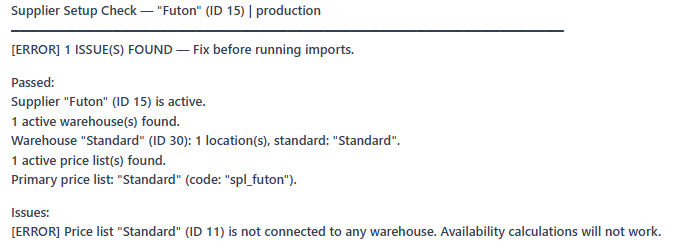
Validates the full configuration chain for a supplier and returns a structured diagnostic report.
Use this tool before running a supplier product import to confirm the infrastructure is in place. A failing check will block imports or break availability calculations.
Checks performed
- Supplier exists and is active.
- At least one active warehouse exists.
- Each warehouse has at least one location (required for Connect imports).
- Each warehouse has a standard location (
IsStandard = true). - At least one active price list exists.
- At least one price list is marked primary (
IsPrimary = true). - Each active price list is connected to at least one warehouse.
Parameters
applicationId— any valid application ID for the client.supplier_idorsupplier_code— provide one, not both.
Output
A diagnostic report with issues[], warnings[], passed[], and an allOk boolean.
List Supplier Products
norce_supplier_list_supplier_products
Lists the supplier product SKUs registered for a supplier, with optional expansion to include cost prices and on-hand quantities. Every supplier SKU the client has access to is listed, whether or not it is linked to a product in the client's own catalogue, and the listing does not show that link. To see which supplier SKUs are linked to catalogue products, use norce_supplier_check_product_mapping.
Use this tool to verify which products are registered for a supplier after an import, or to audit stock and price data per supplier product. The tool reads stored values directly, so it reflects a supplier import as soon as the import job has finished. Supports pagination for large catalogues.
Note: the part_no field in supplier products is the supplier's own part number — not the client SKU part number.
Parameters
applicationId— any valid application ID for the client.supplier_idorsupplier_code— provide one, not both.part_nos— optional filter by one or more supplier part numbers.manufacturer_part_nos— optional filter by manufacturer part numbers.include_prices— set totrueto include cost price and currency per price list.include_onhands— set totrueto include stock levels per warehouse and location.limit/offset— pagination controls. Default 100 records, max 500 per call.
Output
A list of supplier product SKUs with supplier part number, name, manufacturer code and manufacturer part number, category code, EAN, unit of measurement, and (optionally) prices and on-hand quantities. The unit of measurement comes as its id, its name, and a count of how much of that unit one package holds, so Litres with a count of 5 is a 5-litre package. A unit id of 0 means no unit is stored, and the result's notes then say how to set one. When part_nos is given, the output also names any requested part numbers the supplier does not have.
Check Supplier Product Mapping
norce_supplier_check_product_mapping
Reports, for each supplier product SKU of a supplier, whether it is linked to a product in the client's own catalogue, and for the SKUs that are not linked, why not and what to do about it.
Use this tool after a supplier product import to confirm that the imported SKUs were linked to catalogue products, or when a supplier's cost prices or stock do not show up on a product and you need to know whether the supplier SKU is linked at all.
Linking is not part of the import job. After the import job finishes, a queued job in Norce links each imported supplier SKU to a catalogue product by exact match on manufacturer plus manufacturer part number. EAN and category play no part in the match. Because the linking runs after the import job, a supplier SKU whose manufacturer and manufacturer part number are both set can show as imported_not_mapped with reason pending_resolution right after an import without anything being wrong; check again if that status has not changed. The other two reasons describe real problems in the imported data.
Statuses
Each supplier SKU gets one of three statuses:
not_imported— the supplier has the SKU, but it has never been imported for this client. Import it withnorce_supplier_import_products.imported_not_mapped— the SKU is imported for this client, but no catalogue product is linked yet. Thereasonfield says why:no_manufacturer_part_no— the supplier SKU has no manufacturer part number, so nothing can match it. Re-import it withmanufacturer_part_noandmanufacturer_codeset.manufacturer_not_mapped— the supplier's manufacturer is not mapped to a manufacturer in the client's catalogue. If the supplier is set to auto-map manufacturers, re-import with a cost price on at least one SKU of that manufacturer, because the auto-mapping only considers SKUs that carry a price. Otherwise map the manufacturer in Norce Admin; no MCP tool does this.pending_resolution— manufacturer and part number are both set, so the row is waiting for the linking job. Check again later.
mapped— linked to a catalogue product. The row includes the product id, product name and the catalogue SKU part numbers.
Placeholder products. When no catalogue product matches a supplier SKU's manufacturer and manufacturer part number, Norce creates a product with no SKUs to hold the link, and the supplier SKU then shows as mapped with isPlaceholder set to true. Such a link does not connect the supplier SKU to anything sellable. Fix it in one of three ways:
- Create the product with
norce_product_upsert_productsin the Norce Product MCP, using the placeholder's manufacturer code and manufacturer part number. The product import identifies products by that pair, so it adds the SKU to the placeholder instead of creating a second product. Then activate the product in Norce Admin. - Re-import the supplier SKU with
norce_supplier_import_productsusing the manufacturer part number of the existing catalogue product it should match, plus a cost price. The linking job then moves the link to that product. The placeholder product is not removed; it stays in the catalogue as a product with no SKUs, so deactivate it in Norce Admin if it is not wanted. - Complete the placeholder product in Norce Admin.
Parameters
applicationId— any valid application ID for the client.supplier_idorsupplier_code— provide one, not both.part_nos— optional. Check only these supplier part numbers.status— optional. Return only rows with this status:not_imported,imported_not_mappedormapped. Use it to list what still needs fixing on a large supplier without paging through the linked rows.limit/offset— pagination controls. Default 100 rows, max 500 per call.
Output
totals with the number of supplier SKUs per status across the whole supplier, regardless of part_nos and status; count, the number of rows on this page; rows, one per supplier SKU with its status and unit of measurement, and for imported_not_mapped rows the reason and manufacturer id, and for mapped rows the manufacturer id, product id, product name, catalogue part numbers and isPlaceholder; missingPartNos, any requested part_nos the supplier does not have; and notes with the fix for each reason that appears on the page.
Import Supplier Products
norce_supplier_import_products
Imports supplier product data — product identity, stock, prices, and parametric attributes — as a batch job, and returns the job's outcome. The job still runs asynchronously: the call waits up to 20 seconds for it to finish.
Use this tool when receiving a product feed from a supplier: new products, updated stock levels, updated cost prices, or updated product information.
The import header specifies which supplier, warehouse, and price list the records apply to. If warehouse or price list codes are omitted, the tool auto-resolves to the supplier's standard warehouse and primary price list.
Each record can include any combination of product identity, on-hand stock, price, and parametric attributes — include only what you have. The tool infers which fields are being set from what is present in the batch.
Parameters
applicationId— any valid application ID for the client.supplier_code— the supplier code (not the supplier name).price_list_code— optional, defaults to the supplier's primary price list.warehouse_code— optional, defaults to the supplier's standard warehouse.location_code— optional, defaults to the standard location in the resolved warehouse.products— batch of supplier product records, minimum 1 and maximum 5000. Each record requires the supplier's own part number. All other fields (product name, manufacturer info, on-hand, price, parametric attributes) are optional.force_confirm— required on stage and production.
Output
Returns the import job's outcome in the same call: status, inserted, updated and failed counts, the number of submitted records that never landed, and the failure reasons from the job log. It also carries the field selectors inferred from the batch and any immediate validation failures. If the job is still running after 20 seconds, the result instead has status Submitted and the job ID, to follow with norce_supplier_get_import_job_status.
Get Import Job Status
norce_supplier_get_import_job_status
Checks the status of an asynchronous supplier product import job.
Use this tool for an import that came back with status Submitted, or for details on a finished job. Pass wait_seconds (up to 20) to have the call wait for the job to finish instead of polling.
Status values: 2 = Succeeded, 3 = Failed, 4 = Validation failed. Any other code means the job has not finished, and the tool reports it as "In progress". An import that returns Submitted and a job that reads "In progress" here are the same unfinished job. A job reported as succeeded while some records failed or never landed is reported as "Partial failure".
Parameters
applicationId— any valid application ID for the client.job_id— the job ID returned bynorce_supplier_import_products.wait_seconds— optional, 0–20. Holds the call until the job finishes or the time runs out. Default 0 checks once.
Output
Job status, finish flag, and record counts (total, inserted, updated, failed).
Create Supplier
norce_supplier_create_supplier
Creates a new supplier record in Norce Commerce.
Use this tool when onboarding a new supplier. After creating the supplier, add at least one warehouse (norce_supplier_create_warehouse) and one price list (norce_supplier_create_price_list) before running any imports.
Important: is_chosen_supplier_enabled adds business logic to pricing and availability calculations. Only enable this if the supplier is intended to participate in chosen supplier rules — it has broader implications than a simple toggle.
Parameters
applicationId— any valid application ID for the client.name— display name.code— unique supplier code.country_id— country ID. Usenorce_config_get_client_overviewto find country IDs.currency_idandcurrency_code— currency for this supplier.is_chosen_supplier_enabled— enable chosen supplier business logic. Defaultfalse.force_confirm— not required. Creation proceeds with a warning on stage and production.
Output
The created supplier ID.
Update Supplier
norce_supplier_update_supplier
Updates settings on an existing supplier. Only the fields provided are changed. Accepts supplier ID or code.
Note: supplier code and currency cannot be changed after creation.
Parameters
applicationId— any valid application ID for the client.supplier_idorsupplier_code— provide one, not both.name,is_active,is_chosen_supplier_enabled, and chosen supplier charge settings — any combination.force_confirm— required on stage and production.
Output
The updated supplier object.
Create Warehouse
norce_supplier_create_warehouse
Adds a new warehouse to a supplier.
Use this tool when setting up a new supplier or adding a warehouse to an existing one. After creating the warehouse, add at least one location using norce_supplier_update_locations — imports will not work without a location.
Important: The warehouse name is used as WarehouseCode in Connect imports. Choose a stable, code-like name (for example "Standard" or "EU-WH"). Renaming after products have been imported will break stock update flows.
Parameters
applicationId— any valid application ID for the client.supplier_idorsupplier_code— provide one, not both.name— warehouse name, also used asWarehouseCodein imports.standard_lead_time_days— default lead time for all products in this warehouse.is_standard— mark as the primary warehouse for this supplier. Only one can be standard.ignore_stock— exclude from stock-based business logic. Use for display-only or transit warehouses.force_confirm— not required. Creation proceeds with a warning on stage and production.
Output
The new warehouse ID.
Update Warehouse
norce_supplier_update_warehouse
Updates settings on an existing supplier warehouse. Only the fields provided are changed.
Important: Renaming the warehouse changes the WarehouseCode used in Connect imports. Only do this if no products have been imported against this warehouse.
Parameters
applicationId— any valid application ID for the client.supplier_idorsupplier_code— provide one, not both.warehouse_id— warehouse ID fromnorce_supplier_get_supplier.name,standard_lead_time_days,is_standard,ignore_stock,is_active— any combination.force_confirm— not required. Updates proceed with a warning on stage and production.
Output
The updated warehouse object.
Update Locations
norce_supplier_update_locations
Replaces the full list of locations for a supplier warehouse.
Use this tool to add, update, or reconfigure locations. This is also how you add the first location to a newly created warehouse.
Important: This is a full-replace operation — the list you provide becomes the complete set of locations for the warehouse. Always call norce_supplier_get_supplier first to retrieve the current locations, then include all existing locations plus any changes or additions in your request.
Important: Location name is used as LocationCode in Connect imports. Renaming an existing location after products have been imported will break stock update flows.
Parameters
applicationId— any valid application ID for the client.supplier_idorsupplier_code— provide one, not both.warehouse_id— warehouse ID fromnorce_supplier_get_supplier.locations— the complete list of locations. Each entry requires a name andis_standard. For existing locations include their ID; omit it for new ones.standard_lead_time_daysoverrides the warehouse lead time when set.force_confirm— not required. The update proceeds with a warning on stage and production.
Output
Confirmation of the update. Fetch the supplier again with norce_supplier_get_supplier to verify.
Create Price List
norce_supplier_create_price_list
Adds a new price list to a supplier.
Use this tool when setting up a new supplier or adding a cost price list for a new currency or purpose. After creating the price list, connect it to a warehouse using norce_supplier_update_price_list_warehouses — without this connection it will not function correctly in availability calculations.
Important: The price list code is used as PriceListCode in Connect imports. Choose it carefully and do not change it after products have been imported against it.
Parameters
applicationId— any valid application ID for the client.supplier_idorsupplier_code— provide one, not both.name— display name.code— unique code, also used asPriceListCodein imports.currency_id— currency for this price list.is_primary— mark as the primary price list. Only one price list per supplier should be primary.force_confirm— not required. Creation proceeds with a warning on stage and production.
Output
The new price list ID.
Update Price List
norce_supplier_update_price_list
Updates settings on an existing supplier price list. Only the fields provided are changed.
Important: Changing the price list code breaks Connect imports that reference the old PriceListCode. Only rename if no products have been imported against this price list.
Parameters
applicationId— any valid application ID for the client.supplier_idorsupplier_code— provide one, not both.price_list_id— price list ID fromnorce_supplier_get_supplier.name,is_active,is_primary,is_manually_maintained,description— any combination.force_confirm— required on stage and production.
Output
The updated price list object.
Update Price List Warehouse Connections
norce_supplier_update_price_list_warehouses
Replaces the full list of warehouse connections for a supplier price list.
Use this tool after creating a price list to connect it to a warehouse, or to change which warehouses a price list is associated with. This connection determines which supplier stock is used for availability calculations when this price list is active.
Important: This is a full-replace operation. Always call norce_supplier_get_supplier first to retrieve the current connections for the price list, then include all existing connections plus any new ones in your request.
Parameters
applicationId— any valid application ID for the client.supplier_id— supplier ID.price_list_id— price list ID fromnorce_supplier_get_supplier.connections— the complete list of warehouse connections. Each entry requires a warehouse ID. Location ID is optional but recommended for precise availability control.force_confirm— required on stage and production.
Output
Confirmation of the update.
Typical workflows
Setting up a new supplier from scratch
- Call
norce_supplier_create_supplierwith the supplier's name, code, country, and currency. - Call
norce_supplier_create_warehouseto add the first warehouse. Use a stable, code-like name. - Call
norce_supplier_update_locationsto add at least one location to the warehouse. Mark one location as standard. - Call
norce_supplier_create_price_listto add the cost price list. Use a stable code. - Call
norce_supplier_update_price_list_warehousesto connect the price list to the warehouse. - Call
norce_supplier_check_supplier_setupto verify the full configuration is correct before importing.
Validating a supplier before importing
- Call
norce_supplier_check_supplier_setupto run the full validation chain. - If any checks fail, call
norce_supplier_get_supplierto inspect the current configuration and identify what is missing. - Fix each issue using the appropriate create or update tool.
- Run
norce_supplier_check_supplier_setupagain to confirm all checks pass.
Importing a supplier product feed
- Call
norce_supplier_check_supplier_setupto confirm the supplier infrastructure is in place. - Call
norce_supplier_get_supplierto get the warehouse and price list codes if they are not already known. - Prepare the batch — each record needs at minimum the supplier's own part number.
- Call
norce_supplier_import_productswith the full batch. - Read the outcome from the import result. If it came back
Submitted, callnorce_supplier_get_import_job_statuswithwait_seconds: 20untilisFinishedistrue. - Spot-check a sample of records with
norce_supplier_list_supplier_productsto verify the data landed correctly. - Call
norce_supplier_check_product_mappingto confirm the imported SKUs were linked to catalogue products. Linking runs after the import job, so rows that showimported_not_mappedwith reasonpending_resolutionneed a second check later.
Auditing supplier product mappings
- Call
norce_supplier_check_product_mappingfor the supplier. Thetotalsfield gives the number of supplier SKUs that are linked to catalogue products, imported but not linked, and never imported for this client. - Call it again with
status = "imported_not_mapped"to list the supplier SKUs that need attention, and read each row'sreasontogether with the matching entry innotes. - Fix by reason. Re-import with
norce_supplier_import_productswhen the manufacturer part number is missing. When the manufacturer is not mapped, re-import with a cost price if the supplier auto-maps manufacturers, otherwise map it in Norce Admin. When the reason ispending_resolution, wait and check again. A wrong manufacturer part number is not reported as missing: once the linking job has run, that SKU shows asmappedto a placeholder product, which step 4 covers. - Review
mappedrows withisPlaceholder = true. These are linked to an empty product Norce created because nothing matched. Fix each one in one of three ways:- Create the product with
norce_product_upsert_productsusing the placeholder's manufacturer code and manufacturer part number, which adds the SKU to the placeholder, and then activate the product in Norce Admin. - Re-import the supplier SKU with the manufacturer part number of the catalogue product it should match, plus a cost price.
- Complete the placeholder product in Norce Admin.
- Create the product with