Norce Config MCP — Tool Reference
This page documents the tools exposed by the Norce Config MCP Server. For setup and connection instructions, see Using the Norce Backend MCP Servers.
The Config MCP has no write tools. Every tool reads configuration, except Give Feedback, which records a report and changes nothing in Norce.
A note on application IDs
Most Config MCP tools require an application ID as input. The exceptions are norce_config_list_applications and norce_config_give_feedback.
When the agent does not know an application ID, it can call norce_config_list_applications without one. The tool then defaults to an application from your session token and lists the applications your credentials authorize. Putting an application ID in your system prompt still saves that step.
Tools
List Applications
norce_config_list_applications
Lists all applications (storefronts) configured for the client, with their IDs, names, URLs, and active status.
Use this tool as the starting point when you need to know which applications exist — for example before calling norce_config_get_application_overview, or to look up an application ID to use in other MCP servers.
Parameters
applicationId(optional) — any application ID your credentials authorize. It selects which client's applications to list. When omitted, the tool defaults to an application from your session token.
Output
authorizedApplications— every application your session token authorizes, across all clients. Name and client ID are empty for an application that cannot be read.applications— the applications of the requested application's client, with their IDs, names, URLs, and active status, filtered to those your credentials authorize.
Get Client Overview
norce_config_get_client_overview
Returns a consolidated snapshot of the client's top-level configuration: all applications, client-level sales areas (including VAT codes), and currencies with exchange rates.
Use this tool as the first step in most support and validation workflows. It gives a broad picture of how the client is set up without needing to drill into individual applications or stores. It is also the right starting point when you need sales area IDs or VAT code IDs to use in the Pricing MCP.
Parameters
applicationId— any valid application ID for the client.
Output
applications— all storefronts with status and URLs.salesAreas— client-level sales areas, each with their VAT codes and IDs.currencies— active currencies with exchange rates.
Get Application Overview
norce_config_get_application_overview
Returns a consolidated configuration snapshot for a specific application: its details, the cultures, sales areas, and currencies active at the application level.
Use this tool when you need to know what a particular storefront exposes to end customers — which languages, markets, and currencies are active for that application specifically, as opposed to the broader client-level configuration.
Parameters
applicationId— the ID of the application to inspect.
Output
application— name, URL, and active status.cultures— languages active for this application, with primary flag.salesAreas— sales areas active at the application level.currencies— currencies available to this storefront.
List Stores
norce_config_list_stores
Lists all stores (physical or logical divisions) configured for the client, with their IDs, division codes, names, group classification, and active status.
Use this tool when you need to find a store ID before calling norce_config_get_store_overview or norce_config_check_store_setup. Store IDs and division codes returned here are also used as cross-references in the Inventory MCP and Pricing MCP.
Parameters
applicationId— any valid application ID for the client.
Output
A list of stores with their IDs, division codes, names, group classification, and active status.
Get Store Overview
norce_config_get_store_overview
Returns a full configuration snapshot for a specific store: its details, linked warehouses, linked price lists, linked applications, and culture-specific names.
Use this tool when you need cross-reference data for other MCP servers — for example, to find which warehouse IDs are linked to a store (for the Inventory MCP) or which price list IDs are assigned to it (for the Pricing MCP). Also use it as a pre-read before any store association changes.
Parameters
applicationId— any valid application ID for the client.storeId— the store ID fromnorce_config_list_stores.
Output
warehouses— linked warehouses with IDs and location references.priceLists— linked price lists with IDs and codes.applications— storefronts this store is visible in.- Store details including address, contact, open hours, and location coordinates.
Check Store Setup
norce_config_check_store_setup
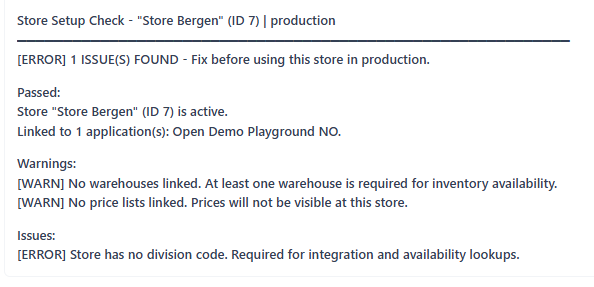
Validates the configuration of a specific store and returns a structured diagnostic report with issues, warnings, and passed checks.
Use this tool during pre-deployment validation or when diagnosing a store that is behaving unexpectedly. It is more efficient than manually inspecting each setting — the tool checks all critical configuration points in one call and surfaces exactly what is missing or misconfigured.
Checks performed
- Store is active.
- Store has a division code (required for integration and availability lookups).
- At least one warehouse is linked.
- Each warehouse link has a location ID set (required for accurate inventory lookups).
- At least one price list is linked.
- At least one application is linked (required for storefront visibility).
Parameters
applicationId— any valid application ID for the client.storeId— the store ID fromnorce_config_list_stores.
Output
A diagnostic report with issues[], warnings[], passed[], and an allOk boolean.
Give Feedback
norce_config_give_feedback
Lets the agent report friction with any of the Norce Backend MCP Servers. Typical reports are a description that misled it, a result that was wrong or unclear, a valid call the platform rejected, or a task no tool could do.
Use this tool when something gets in the way of a task. The agent files the report and carries on. Nobody replies in the session; the report is recorded for the Norce team. The tool changes nothing in Norce and does not take an application ID.
Feedback on where the tools fall short is wanted. When the agent has to tell you that no tool could give you something you asked for, it is asked to end its answer by offering to report that to Norce, and to file the report if you agree.
You can also ask the agent to pass feedback to Norce, for example a missing capability you need. The agent is asked to quote your words and to leave out your name, email and anything else that identifies you.
Every tool result on every Backend MCP Server ends with a line of the form call_ref: <id>. Results with structured content also carry the id as callRef. Passing it as call_ref ties the report to that exact call.
Parameters
message— what happened: the tool called, the arguments that mattered, what was expected and what came back. The agent is asked to leave out personal data about customers.category— one of:tool_contract— a description or argument was misleading.tool_result— the result was wrong, incomplete or unclear.upstream_api— the platform rejected or mishandled a valid call.missing_capability— no tool does what the task needed.docs— public documentation.other— anything else.
source— on of:agentwhen the agent raised the report itself, including after you agreed to its offer to report.userwhen you asked the agent to pass feedback to Norce.
severity(optional) — one of:high— blocked the task or produced wrong data.medium— cost extra calls or a workaround.low— minor.
tool_name(optional) — the tool the report is about, for examplenorce_product_search_products.call_ref(optional) — thecall_reffrom the result the report is about.
Output
A confirmation that the feedback was recorded.
Typical workflows
Starting a support investigation
- Call
norce_config_get_client_overviewto get a broad picture of the client's setup — applications, sales areas, and currencies in one call. - If the issue is related to a specific storefront, follow up with
norce_config_get_application_overviewfor that application. - If the issue involves stock or pricing, use the warehouse IDs and price list IDs from
norce_config_get_store_overviewas input to the Inventory MCP and Pricing MCP.
Validating a store before go-live
- Call
norce_config_list_storesto find the store ID. - Call
norce_config_check_store_setupwith that store ID to run the full validation check. - If any issues are reported, call
norce_config_get_store_overviewto inspect the current state and identify what needs to be corrected.
Fetching reference data for other MCP servers
When a task requires IDs that other MCP servers need (price list codes, warehouse IDs, sales area IDs, VAT codes):
- Call
norce_config_get_client_overviewfor client-level sales areas and VAT codes. - Call
norce_config_get_store_overviewfor the warehouse IDs and price list IDs linked to a specific store.
These IDs can then be passed directly to the Pricing MCP, Inventory MCP, or Supplier MCP.