Norce Pricing MCP — Tool Reference
This page documents the tools exposed by the Norce Pricing MCP Server. For setup and connection instructions, see Using the Norce Backend MCP Servers.
force_confirmparameter: Write tools include aforce_confirmparameter, backed by a server-side guard that classifies each operation by impact. Lower-impact operations go through, with a warning attached on stage and production. Higher-impact operations are blocked on stage and production untilforce_confirmis set. A few destructive operations are blocked on every environment, including test. Each tool below states which of these applies.
Two views of price data
Like the Inventory MCP, the Pricing MCP exposes price data through two distinct lenses. Choosing the right one matters:
norce_pricing_get_sku_pricesreads directly from the database — no cache, no VAT, no business logic. Use it for diagnostics and to verify that an import landed correctly.norce_pricing_preview_pricesandnorce_pricing_preview_price_detailreturn prices as the storefront would show them — with business rules, VAT, and caching applied. Use them to answer "what will the customer see?"
The storefront view is application-specific — the applicationId you pass determines which storefront's price context is applied. Different applications (for example a Swedish and a Norwegian storefront) can have different default price lists, sales areas, VAT rates, and currencies, so the same SKU can return a different calculated price depending on which application ID is used. Use norce_config_list_applications to list all applications for the client, then switch between them to compare how different storefronts price the same product.
Tools
List Price Lists
norce_pricing_list_price_lists
Lists price lists for the client with their codes, names, currencies, types, validity dates, and status.
Use this tool to understand the client's pricing structure, find price list codes and IDs, or audit which price lists are active, upcoming, or have ended. The filter parameter controls which lifecycle state to return — "open" (default) returns active and upcoming lists, "active" returns only currently valid ones, "inactive" returns ended or deactivated ones.
Parameters
applicationId— any valid application ID for the client.filter— lifecycle filter:"open"(default),"active", or"inactive".
Output
A list of price lists with their IDs, codes, names, currencies, type IDs and type names, validity dates, sales area relationships, and application-scoped flags.
Get Price List
norce_pricing_get_price_list
Returns full details for a single price list — core settings, default pricing rule, override pricing rules, and population configuration.
Use this tool before updating a price list, when diagnosing how a specific price list is configured, or to read the current pricing rules before modifying them. Accepts price list code or numeric ID.
Parameters
applicationId— any valid application ID for the client.price_list— price list code or numeric ID. Codes are preferred.
Output
Complete price list configuration including settings, default pricing rule, category/manufacturer-level override rules, and population rules.
List Price List Types
norce_pricing_list_price_list_types
Lists the price list types the client has set up, in sort order.
Use this tool before setting a type on a price list. The IDs it returns are the valid values for type_id on norce_pricing_create_price_list and norce_pricing_update_price_list_settings, along with 0 for no type.
A price list doesn't need a type. Type 0 means "no type", so it's not one of the types this tool returns. A new price list gets type 0 unless you give it one, and you can set a list back to 0 to remove its type.
Norce saves whatever type ID it's given, so a mistyped or made-up ID still goes through. The price list then has a type ID that doesn't match any of the client's types, so it shows no type name. If that happens, the tool's result tells you.
Types are set up in Norce Commerce. The MCP cannot create or edit them.
Parameters
applicationId— any valid application ID for the client.
Output
A list of types with their ID, code, name, description, priority, and sort order.
List Rounding Rules
norce_pricing_list_rounding_rules
Lists all rounding rules configured for the client, with their value ranges and rounding behaviour.
Use this tool to understand how prices are rounded for a given currency, or when verifying that a new price list will have a rounding rule applied correctly. Rounding rules are applied implicitly based on the price list's currency — they are not linked directly to a price list.
Parameters
applicationId— any valid application ID for the client.
Output
A list of rounding rules with their IDs, names, currency, type, and the value range entries that define rounding behaviour.
Get Rounding Rule
norce_pricing_get_rounding_rule
Returns full details for a single rounding rule.
Use this tool when you need to inspect the exact rounding configuration for a specific rule — for example when verifying that a new price list's currency is covered.
Parameters
applicationId— any valid application ID for the client.rounding_rule_id— numeric ID fromnorce_pricing_list_rounding_rules.
Output
The rounding rule with all value range entries and rounding behaviour settings.
Check Price List Setup
norce_pricing_check_price_list_setup
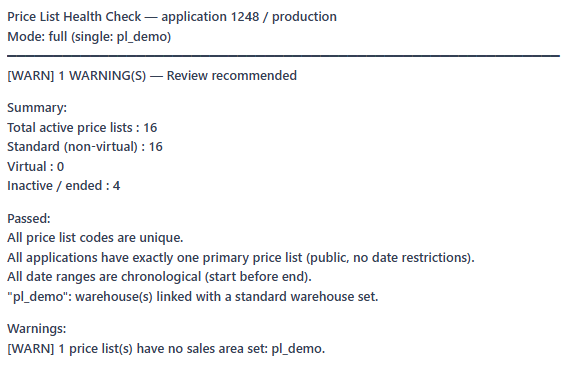
Audits the pricing configuration for the client — or a single price list — and returns a structured health report with issues, warnings, notes, and passed checks.
Use this tool during pre-deployment validation or as a regular health check. It surfaces structural problems that are difficult to spot by reading individual price list settings.
The tool runs in two modes:
- Summary (default, fast) — list-level checks: duplicate or missing codes, primary price list rules per application, mixed currencies, date validity, missing sales area IDs, and upcoming expiry warnings.
- Full — everything in summary, plus deep per-list checks: warehouse links, pricing rule validity, population rule integrity, and virtual price list constraints.
When a specific price_list is provided, full checks always run for that list regardless of mode.
Cross-domain checks (validating that pricing rules do not reference deleted flags, categories, or manufacturers) are available when context is provided from the Product MCP.
Parameters
applicationId— any valid application ID for the client.mode—"summary"(default) or"full".price_list— optional, narrow to a single price list by code or ID.max_price_lists— maximum price lists to run deep checks on in full mode. Default 50, max 500.context— optional cross-domain context: deleted flag IDs, category IDs, and manufacturer IDs from the Product MCP.
Output
A health report with issues[], warnings[], notes[], passed[], and summary statistics.
Get SKU Prices
norce_pricing_get_sku_prices
Reads raw price records for one or more SKUs directly from the database, across all or specific price lists.
Use this tool for diagnostics and post-import verification — when you need to see exactly what is stored, check update timestamps, or audit which price rule a SKU is on. This tool bypasses cache and business logic.
Do not use this tool to answer "what does the customer see?" — use norce_pricing_preview_prices for that.
Parameters
applicationId— any valid application ID for the client.part_nos— one or more SKU part numbers. Maximum 50 per call.price_list_filters— optional list of price list codes or IDs to limit results.include_inactive— set totrueto include deactivated price records.include_sku_status— set totrueto include the product's active/coming/expiring status.include_audit_fields— set totrueto include last updated timestamps and editor information. Useful when diagnosing when a price was last changed.include_info_fields— set totrueto include any client-configured extra fields on the price record.include_structure_items— set totrueto expand item-level price rules for products using structure calculation pricing. Only relevant for those specific products.
Output
Per part number and price list: sale price, price rule, cost fields, standard and recommended prices, active status, and (optionally) audit timestamps and custom info fields.
Preview Prices
norce_pricing_preview_prices
Returns the calculated best price for one or more products as the storefront would show it — with business rules, VAT, and caching applied.
Use this tool to answer "what will the customer see?" after a price list change or import, or to simulate pricing for different customer segments, sales areas, or currencies. You can also pass a different applicationId to compare how the same SKU is priced on two different storefronts — for example to check whether the Swedish and Norwegian storefronts return the correct prices for the same product. For ground truth after an import, use norce_pricing_get_sku_prices instead — this tool may return cached values.
Parameters
applicationId— any valid application ID for the client.part_nos— one or more SKU part numbers. Maximum 50 per call.sales_area_id— sales area for VAT calculation. Defaults to the application's primary sales area. Usenorce_config_get_application_overviewto find sales area IDs.customer_id— optional, simulate customer-specific pricing.company_id— optional, simulate B2B pricing context.price_list_seed— optional list of price list codes or IDs to simulate the price lists available in the session.currency_id— optional, simulate a specific currency context.
Output
Per product: calculated sale price (ex and inc VAT), recommended price, catalog price, VAT rate, and the price list that produced the result.
Preview Price Detail
norce_pricing_preview_price_detail
Deep price inspection for a single product — includes cost fields, margin data, and the full quantity break price table when applicable.
Use this tool when you need more detail than norce_pricing_preview_prices provides: cost fields for margin verification, or all quantity break pricing tiers in one call. Like preview_prices, this applies business logic and may return cached values — not raw database values. Pass a different applicationId to compare pricing detail across storefronts.
Parameters
applicationId— any valid application ID for the client.part_no— a single SKU part number.sales_area_id,customer_id,company_id,price_list_seed,currency_id— same pricing context parameters asnorce_pricing_preview_prices.
Output
Full price detail with cost fields, margin data, quantity break flag, and (when the product has quantity breaks) the complete price table per quantity tier.
Get Best Price History
norce_pricing_get_best_price_history
Returns the best price history log for one or more products — an audit trail of every moment the publicly available best price changed.
Use this tool for EU Omnibus Directive compliance work. The Omnibus Directive requires retailers to show the lowest price from the preceding 30 days before marking a product as on sale. This tool provides the data needed to verify and demonstrate compliance.
Use qty_break_one_only for compliance audits — volume pricing tiers are not relevant for Omnibus purposes.
Parameters
applicationId— any valid application ID for the client.part_nos— one or more SKU part numbers. Maximum 20 per call.date_from/date_to— optional date range for the history window.qty_break_one_only— set totrueto filter to base unit price changes only. Recommended for compliance use.
Output
A chronological log of best price change events per product, with the price, price list, currency, and timestamp of each change.
Import SKU Prices
norce_pricing_import_sku_prices
Imports or updates price records at the product–price list level as a batch job, and returns the job's outcome. The job still runs asynchronously: the call waits up to 20 seconds for it to finish.
Use this tool when updating prices from an external source such as an ERP, supplier feed, or campaign file.
Important: always batch. Collect all records before calling and pass them in a single call. Never call once per product.
Important: declare fields_to_set. This parameter is required and controls exactly which fields are written. Only the fields you declare are touched on existing records — all other fields remain unchanged. This prevents accidental overwrites when updating a subset of price fields. For example, if you are only updating price_sale, declare only "price_sale" in fields_to_set. Each record then passes exactly the declared fields. The tool refuses a record that leaves a declared field out, because the import would write it as empty (0, null or false). price_rule is the exception: a record without it keeps its stored rule. The tool also refuses a record that carries a field fields_to_set does not declare, because that value would never be written.
Important: send sale prices and price rules in separate calls. A changed price_sale puts a record on rule 2 (Fixed price), so a fixed price needs only price_sale. For any other rule, declare price_rule without price_sale, and an existing record keeps its sale price. The tool refuses a call that declares both.
Important: use price list codes, not IDs. The import uses price list codes (price_list_code per record), not numeric IDs.
Parameters
applicationId— any valid application ID for the client.records— batch of price records, minimum 1 and maximum 5000 per call. Each record requires a part number and price list code, and passes exactly the fields declared infields_to_set. A part number, price list code and quantity break appear once per call.fields_to_set— the fields to write. Required. Only these fields are updated on existing records.fields_to_ignore_when_empty— optional subset offields_to_set. A listed field keeps its stored value when a record leaves it out or passes it empty (null or 0). Useful for mixed batches where not every row has every field populated. On a new record, an empty listed field means the record is not created, and the job still reports success, so leave this unset for a batch that may hold new records. Any import re-activates a stopped price record, and listingis_activehere without declaring it keeps stopped records stopped.force_confirm— required on stage and production.
Output
Returns the import job's outcome in the same call: status, inserted, updated and failed counts, the number of submitted records that never landed, and the failure reasons from the job log. It also carries the record count received and any immediate validation failures. If the job is still running after 20 seconds, the result instead has status Submitted and the job ID, to follow with norce_pricing_get_import_job_status.
Import Bundle Item Prices
norce_pricing_import_structure_item_prices
Sets the price rule a bundle (structure product) uses for each of its child SKUs, per price list and quantity break, as a batch job. Like the SKU price import, the call waits up to 20 seconds for the job and returns its outcome.
Use this tool to give a child inside a bundle its own price on a price list, such as a percentage discount off its standard price or a fixed price.
Important: the bundle's own row must be on rule 11. A child row only affects the bundle's price when the bundle's own price row on that price list uses price rule 11 (Structure calculation). The import writes child rows either way. Before it submits, the tool checks the bundle rows and warns about any bundle that isn't on rule 11. Set that rule with norce_pricing_import_sku_prices.
Important: some price lists don't accept child rules. When a price list's InheritStructureCalculationRule is 1 (items use the default price rule) or 2, rows that set a price rule fail, and the failure reasons say which price list. norce_pricing_get_price_list shows the setting. Value 2 is what norce_pricing_update_price_list_pricing_rules calls inherit_from_item_price.
Important: the child must already be in the bundle. The import doesn't create structure items. A row for a SKU that isn't a child of the bundle fails. Use norce_product_import_structure_items to build the structure first.
Parameters
applicationId— any valid application ID for the client.records— batch of rows, minimum 1 and maximum 5000 per call. Each row names the bundle (structure_part_no), the child (part_no), the price list code and the quantity break (default 1). It can then carryprice_ruleandprice_rule_value,is_active,minimum_margin_percentage,limit_to_price_recommendedanditem_price_list_code. A fixed child price isprice_rule2 with the price inprice_rule_value. A child takes rules 1 to 7 and 10. Rule 11 belongs on the bundle's own row, and rules 8, 9 and 12 can't price a child, so the tool refuses all four.fields_to_set— the fields to write. Required. Fields not listed are left unchanged on existing rows. Listingprice_rulealso writesprice_rule_value.fields_to_ignore_when_empty— optional subset offields_to_set. A listed field keeps its stored value on rows where the record leaves it empty, instead of being reset.force_confirm— required on stage and production.
Output
The import job's outcome, with the same counts and failure reasons as the SKU price import. It also lists the bundles that aren't on rule 11 on a submitted price list, and says if the tool couldn't run that check. Verify with norce_pricing_get_sku_prices on the bundle part numbers with include_structure_items. The sale prices of the child and the bundle are recalculated after the import, so for several minutes they can show the previous price. A new child row shows 0 until then, so the bundle can briefly read lower than before. Read them again with norce_pricing_get_sku_prices to see when the new price is in.
Get Import Job Status
norce_pricing_get_import_job_status
Checks the status of an asynchronous price import job.
Use this tool for an import that came back with status Submitted, or for details on a finished job. Pass wait_seconds (up to 20) to have the call wait for the job to finish instead of polling.
Status values: 2 = Succeeded, 3 = Failed, 4 = Validation failed. Any other code means the job has not finished, and the tool reports it as "In progress". An import that returns Submitted and a job that reads "In progress" here are the same unfinished job. A job reported as succeeded while some records failed or never landed is reported as "Partial failure".
Parameters
applicationId— any valid application ID for the client.job_id— the job ID returned bynorce_pricing_import_sku_pricesornorce_pricing_import_structure_item_prices.wait_seconds— optional, 0–20. Holds the call until the job finishes or the time runs out. Default 0 checks once.
Output
Job status, finish flag, record counts (total, inserted, updated, failed), and processing timestamps.
Create Price List
norce_pricing_create_price_list
Creates a new price list. Pricing rules and population rules are configured separately after creation using the update tools.
Use this tool when setting up a new client environment, adding a campaign price list, or creating a market-specific price list. The price list code must be unique and is used by the Connect API for price imports — choose it carefully.
Parameters
applicationId— any valid application ID for the client.code— unique price list code. Used by the Connect API for imports — changing it later will break existing integrations.name— display name.currency_id— currency for prices in this list. Usenorce_config_get_client_overviewto find currency IDs.type_id— optional price list type, fromnorce_pricing_list_price_list_types. Leave it out for no type (0).valid_from,valid_to,is_active— optional settings.force_confirm— not required. Creation proceeds with a warning on stage and production.
Output
The created price list with its assigned numeric ID.
Update Price List Settings
norce_pricing_update_price_list_settings
Updates general settings on an existing price list — name, code, currency, validity dates, active status, type, parent price list, and sales area. Only the fields provided are changed.
Use this tool to activate or deactivate a price list, adjust its validity window, link it to a parent price list (for campaign inheritance), or assign it to a sales area. To update pricing rules or population rules, use the dedicated update tools instead.
Important: Changing a price list code will break any Connect API imports that reference the old code.
Parameters
applicationId— any valid application ID for the client.price_list— price list code or numeric ID.name,code,currency_id,valid_from,valid_to,is_active— any combination of settings to update.type_id— price list type, fromnorce_pricing_list_price_list_types, or 0 to clear the type.parent_price_list_id— link to a parent price list for campaign inheritance, ornullto detach.sales_area_id— assign to a sales area for VAT context. Usenorce_config_get_client_overviewto find sales area IDs.chosen_warehouse_id/chosen_location_id— couple the price list to a specific warehouse and location. The two must be provided together.force_confirm— required on stage and production when changing the warehouse coupling (chosen_warehouse_id); other settings changes proceed with a warning there.
Output
The updated price list object.
Update Price List Pricing Rules
norce_pricing_update_price_list_pricing_rules
Updates the default pricing rule and category/manufacturer-level override rules for a price list.
Use this tool to change how prices are calculated for the price list — the default rule that applies to all products, and any overrides for specific categories, manufacturers, or value ranges.
Important: The pricing_rules array replaces all existing override rules. Always read the current rules first with norce_pricing_get_price_list to avoid losing existing configuration.
The default pricing rule determines how the sale price is derived — for example as a margin on purchase cost, a discount from the recommended price, or a fixed price set per product via import. The rule ID and value work together: the value's meaning depends on which rule is selected (a percentage for margin rules, a discount amount for fixed discount rules, and so on).
Parameters
applicationId— any valid application ID for the client.price_list— price list code or numeric ID.default_price_rule_id— the default pricing rule for this price list.default_price_rule_value— the value for the default rule; meaning varies by rule type.default_supplement_charge_percentage— percentage surcharge added to cost before rule calculation, for cost-based rules.default_limit_to_price_recommended— cap the calculated price at the recommended price.default_minimum_product_margin_percentage— minimum margin floor applied across all rules on this price list.inherit_structure_calculation_rule— controls how discounts are distributed across structure items.pricing_rules— the complete set of category/manufacturer-level override rules.force_confirm— required on stage and production.
Output
Confirmation of the update. Read the price list again with norce_pricing_get_price_list to verify.
Update Price List Population Rules
norce_pricing_update_price_list_population_rules
Updates the population rules that control which products are included in or excluded from a price list.
Use this tool when configuring which products a price list covers — for example limiting it to specific manufacturers, flags, or product sets. Population rules are read first and merged with your changes before writing.
Parameters
applicationId— any valid application ID for the client.price_list— price list code or numeric ID.population_rules— the full population rules object. Read the current state fromnorce_pricing_get_price_listand modify the fields you want to change before passing it here.force_confirm— not required. The update proceeds with a warning on stage and production.
Output
Confirmation that population rules were updated.
Typical workflows
Diagnosing a price discrepancy
- Call
norce_pricing_get_sku_pricesto see the raw stored price, which rule is applied, and when the record was last updated. - Call
norce_pricing_preview_pricesto see what the storefront is actually showing. You can run this with differentapplicationIdvalues to compare how the same product is priced across storefronts — for example, checking whether the Swedish and Norwegian storefronts return different prices for the same SKU. - Compare the two — if the raw price looks correct but the preview does not, the issue is in business logic, VAT calculation, or caching.
- If the raw price itself looks wrong, check the import job history or call
norce_pricing_get_price_listto verify the price list's default rule.
Importing prices from an external source
- Call
norce_pricing_list_price_liststo get the price list codes needed for the import records. - Collect all records into a single batch and declare
fields_to_setfor the fields you are writing. - Call
norce_pricing_import_sku_priceswith the full batch. - Read the outcome from the import result. If it came back
Submitted, callnorce_pricing_get_import_job_statuswithwait_seconds: 20untilisFinishedistrue. - Verify a sample of SKUs with
norce_pricing_get_sku_pricesto confirm the values landed correctly.
Validating pricing configuration before go-live
- Call
norce_pricing_check_price_list_setupin"full"mode to run deep checks across all price lists. - Review the
issues[]andwarnings[]in the report. - For any price list with issues, call
norce_pricing_get_price_listto inspect the current configuration and determine what needs to be corrected.
Setting up a new campaign price list
- Call
norce_pricing_create_price_listwith the code, name, currency, and validity dates. Set the start date in the future to activate the campaign on a specific date. - Call
norce_pricing_update_price_list_settingsto link it to a parent price list and assign the correct sales area. - Call
norce_pricing_update_price_list_pricing_rulesto configure how campaign prices are calculated. - Call
norce_pricing_update_price_list_population_rulesif the campaign applies only to specific products, manufacturers, or flags. - Verify the setup with
norce_pricing_check_price_list_setupfor that specific price list. - Call
norce_pricing_preview_pricesfor a sample of affected SKUs to inspect what prices they will have when the campaign activates — the backend already reflects the campaign pricing even before the start date, so you can validate the outcome in advance.
Omnibus compliance check before a sale
- Call
norce_pricing_get_best_price_historywith the relevant part numbers, adate_from30 days before the sale start date, andqty_break_one_only = true. - Review the lowest price recorded in that window per product.
- Verify that the planned sale price is not presented as a discount from a higher price than the actual lowest price in the period.