Consuming a Norce Commerce Product Feed
A Product Feed Receiver is a service that triggers product exports from Norce Commerce, waits for them to be ready, downloads the data, and delivers it to your target system (such as a search engine or marketplace).
Before building a receiver, make sure you have:
- A configured feed channel with a Channel key — see Configuring Product Feed Channels
- An understanding of which feed types to use and when — see Product Feed Types and Scheduling
Receiver responsibilities
The receiver is responsible for:
- Triggering feed creation via the Norce Product Feed API
- Polling for feed readiness (or listening for the
ExportDeliveredEvent) - Downloading the feed data from Azure storage
- Applying mappings and business logic, then delivering to the target system
- Handling errors and monitoring feed status
The export process
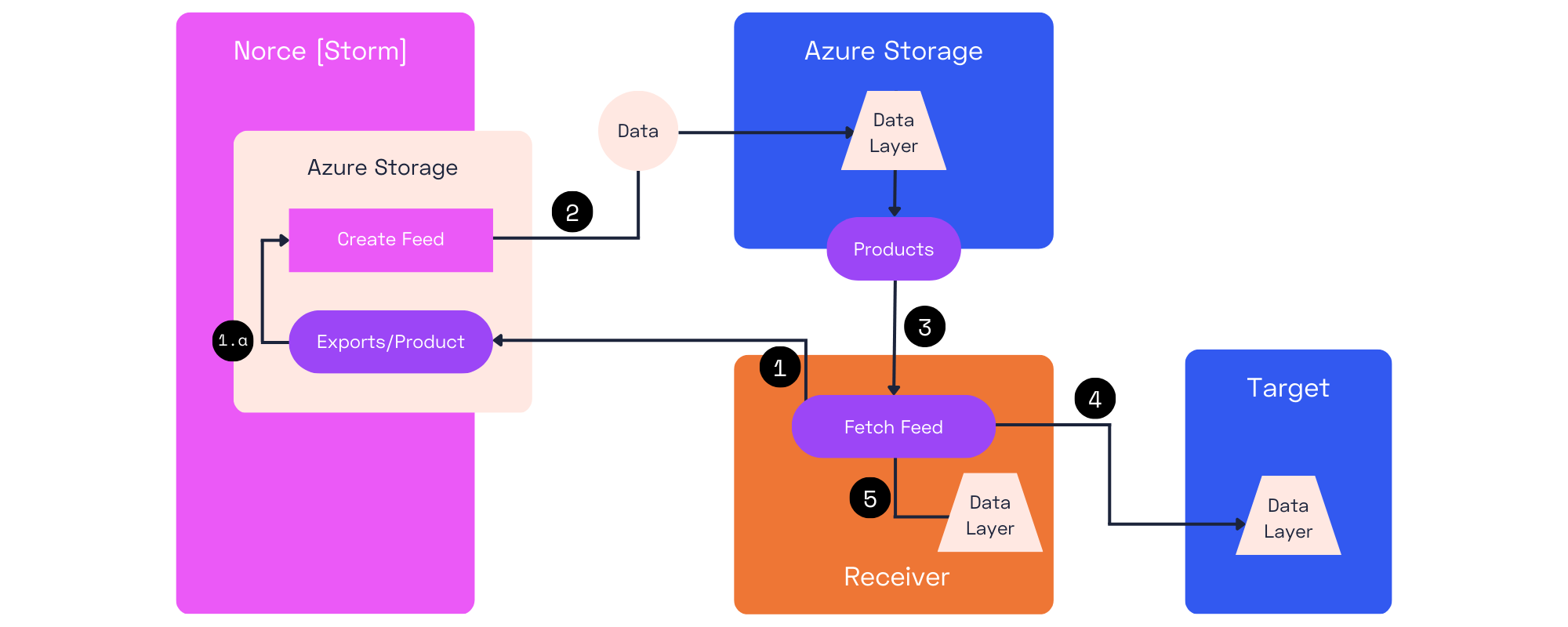
- The receiver triggers a feed export via the API.
- The response includes a
JobKeyand a status code:Success— the feed is being created.AlreadyInProgress— a feed of the same type is already running; this request is ignored.NoData— no products or changes were found; no feed is created.Failed— an internal error occurred. Check logs in the admin for details.
- The response includes a
- The feed is created in Azure storage. The receiver polls ChannelService/api/v1/jobs/job until the status changes to
CompletedInExportFeed. - The receiver downloads the feed data from the HTTP(s) endpoint in Azure. See the Azure File Service REST API for details.
- The receiver applies mappings and business logic, then creates or updates the target system.
- (Optional) Store the
JobKeyin your own logs — feed data is accessible for 90 days.
Instead of polling in step 2, the receiver can listen to the ExportDeliveredEvent from Norce Commerce Event. See Using Norce Event for details.
Triggering a full export
Call ChannelService/api/v1/exports/product or ChannelService/api/v1/exports/productstatus without deltaFromDate (or with it set to null):
{
  "channelId": "[the channel key]"
}
The result is a snapshot of the full catalog at the time of export. When importing a full feed into the target system, deactivate all existing products first and repopulate from the new feed.
Triggering a delta export
Include deltaFromDate to request only products changed since that timestamp (UTC):
{
  "channelId": "[the channel key]",
  "deltaFromDate": "2020-10-01T14:43:19.210Z"
}
Only the changed products are returned. Update these in the target system without touching the rest of the catalog.
Whenever possible, use ProductStatus delta feeds — the smaller payload means faster processing.
Accessing feed data
Feed files are available for 90 days after creation:
- Lab/test:
https://stoexporttest.blob.core.windows.net/exports/[JobKey] - Production:
https://stoexport.blob.core.windows.net/exports/[JobKey]
This is useful for reviewing past exports and debugging historical data issues.
Product contracts
An example feed is provided at:
Developing and testing
During development, use the example feed URL above for quick access to sample data.
When working with real client data, set up a channel, trigger a feed, and find the JobKey in the admin log to access the output directly.
Further Reading
- Configuring Product Feed Channels — channel settings, included data, and delta change tracking setup
- Product Feed Types and Scheduling — feed types and recommended trigger frequencies
- Working with Products and Search using Norce Commerce Product Feed — architectural patterns for external search integration