Building your Checkout
This documentation is currently being reworked, but still available here if needed.
Configured adapters
Your channel represents a set of configurations that make up a checkout experience for your end customer.
A simple example would be only having one channel.
| Channel |
|---|
| se |
Here we would expect to find all the configurations needed. In this case we're using the Norce adapter for Norce Commerce and the Klarna adapter for Klarna Checkout with Klarna Shipping Assistant to handle both payments and delivery.
| Channel | Configuration ID | Notes |
|---|---|---|
| se | norce_adapter | Platform adapter |
| se | klarna_checkout_adapter | Payment and Delivery adapter |
Let's say we want to A/B test using Ingrid for Delivery instead of Klarna Shipping assistant. We'd want a new channel for this.
| Channel |
|---|
| se |
| se-ingrid |
We'd copy over our se configurations and update the Klarna adapter configuration to use an account that isn't configured for Klarna Shipping Assistant. We'd also add our configuration for Ingrid.
| Channel | Configuration ID | Notes |
|---|---|---|
| se-ingrid | norce_adapter | Platform adapter |
| se-ingrid | klarna_checkout_adapter | Payment adapter |
| se-ingrid | ingrid_adapter | Delivery adapter |
Next we need to make sure our checkout knows how to handle dynamic adapters. The simplest case would be to check if a configuration is available for ingrid in our current channel, if it is we use it, otherwise we fall back to just using Klarna Checkout.
Generally you would fetch all configurations for your channel, filter out any adapters that are not active and identify each adapter identifier that you support. In our case we'd know to expect norce_adapter for our platform, klarna\_checkout\_adapter for our payment and ingrid_adapter for our delivery.
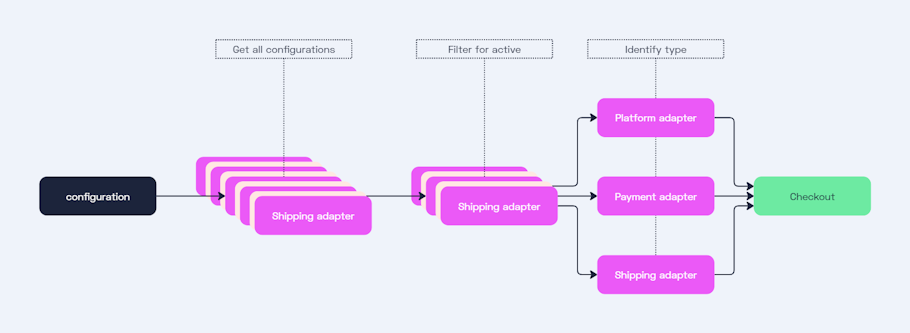
Now we can push some of our end customers to our new channel. Once we're ready we can upset the se-ingrid configurations to our se channel, or we could start using se-ingrid as our main channel.
Another way to try out a new adapter is to use the active flag. By adding a new adapter configuration but setting active to false it should be ignored by the checkout.
| Channel | Configuration ID | Active | Notes | | ------- | ---------------- | ------- | | se-ingrid | norce_adapter | true | Platform adapter | | se-ingrid | klarna_checkout_adapter | true | Payment adapter | | se-ingrid | ingrid-adapter | true | Delivery adapter | | se-ingrid | adyen_dropin_adapter | false | Payment adapter |
We could then perform the switch from Klarna Checkout to Adyen by simply changing the active flags.
| Channel | Configuration ID | Active | Notes | | ------- | ---------------- | ------- | | se-ingrid | norce_adapter | false | Platform adapter | | se-ingrid | klarna_checkout_adapter | true | Payment adapter | | se-ingrid | ingrid-adapter | true | Delivery adapter | | se-ingrid | adyen_dropin_adapter | true | Payment adapter |
Example
// Fake example code

function RenderPayment({ adapterId }) {
  switch (adapterId) {
    case PrimaryPaymentAdapters.KlarnaCheckout:
      return <KlarnaCheckout />;
    case PrimaryPaymentAdapters.AdyenDropin:
      return <AdyenDropin />;
    default:
      return <>Unknown payment method</>;
  }
}

function App() {
  const { order, configurations } = useCheckoutData();

  const configPaymentAdapterId = configurations.find((c) =>
    Object.keys(PrimaryPaymentAdapters).includes(c.id)
  ).id;
  const activePaymentAdapterId = order.payments?.find((payment) => {
    return (
      Object.values<string>(PrimaryPaymentAdapters).includes(
        payment.adapterId
      ) && payment.state !== "removed"
    );
  });

  return (
    <>
      <Cart />
      <Shipping />
      <RenderPayment
        adapterId={activePaymentAdapterId || configPaymentAdapterId}
      />
    </>
  );
}
If writing a very general checkout, you probably also want to do something very similar for all UI elements.