AI enrichment in batch update
AI enrichment is an add-on to Norce batch update. It lets you translate existing product texts and generate new product texts for many products at once, using AI. The work runs as a background job, so you can leave the product list while the job is processing, and every suggested value is presented for review before anything is written to your product data.
AI enrichment covers two operations:
- Translate — translates text that already exists in a source culture into one or more other cultures.
- AI Generate — generates new text into a target culture, based on the AI instruction you have configured for the field.
AI enrichment is built on Azure AI Foundry, which runs the models in the background. No AI provider account or API key of your own is required.
AI enrichment is released as an open beta. It is available to all Norce customers, and details of the functionality may change before general availability.
During the open beta, a modest cap applies to how much AI enrichment usage is included.
AI enrichment is included in the Norce SaaS license with a capped amount of usage. During the open beta the included cap is modest. If you need more than the included volume, additional usage can be added for an additional fee. Contact your Norce contact person to extend your AI enrichment volume.
Usage reporting for AI enrichment is not released yet. When it is available, AI enrichment usage will be shown under Settings > AI.
Before you use AI enrichment
Before you can run AI enrichment jobs on products, ensure the following:
- You have AI enrichment usage available. During the open beta, AI enrichment is available to all Norce customers with a modest included cap.
- The text fields you want to work with are of type Text or HTML. Only text and HTML fields can be translated or generated. This applies both to built-in product text fields and to parametrics.
- For AI Generate: an AI Instruction is configured on each field you want to generate. Fields without an AI instruction are not listed in the AI Generate tab. See Configure AI instructions on fields.
- For Translate: no AI instruction is needed, but the products must already have text in a source culture to translate from.
- You are working in the application that holds the Brand Voice you want to apply. Brand Voice is application specific. See Configure AI enrichment in Settings.
Where to find AI enrichment in the product list
AI enrichment is started from the product list in Norce PIM. The batch update interface has changed to make room for it:
- Batch update is no longer opened from Tools > Batch Update, and no longer replaces the product list with a separate batch update mode.
- Checkboxes are always available on the product list. You do not need to enter a batch update mode first.
- The batch update options open in a collapsible pane on the right-hand side of the product list, where the action controls appear and where the job is started.
To open the batch update pane:
- Filter the product list so it contains the products you want to work with.
- Select products by checking the checkbox on one or more rows, or use Select All to select the whole result set.
- An Update button appears on the filter row above the product list. Click Update.
- The batch update options open in the pane on the right.
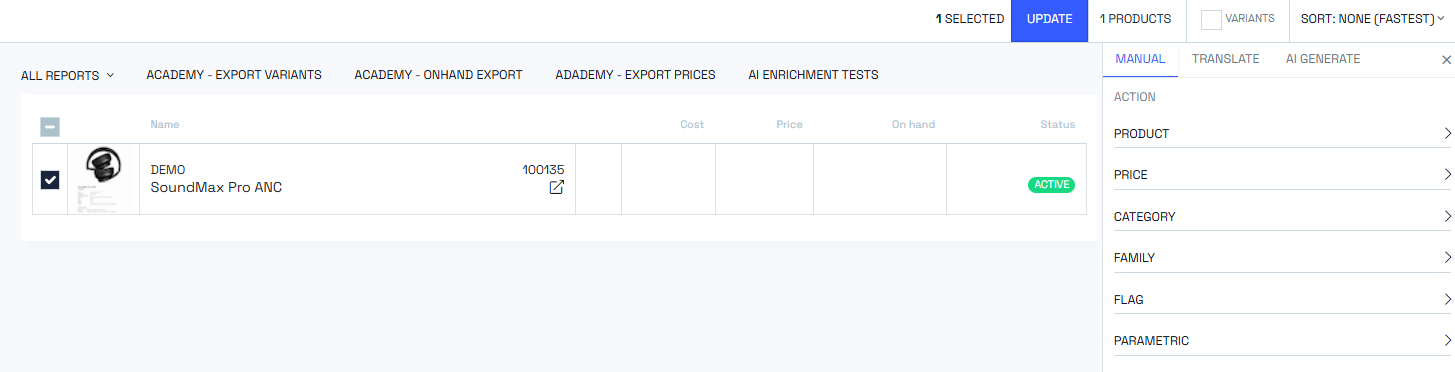
The pane contains three tabs:
| Tab | What it does |
|---|---|
| Manual | All the existing batch update actions, such as setting manufacturer, product status, prices, categories, flags and parametric values. This is the previous way of doing batch updates, now presented in a clearer and easier-to-navigate layout. |
| Translate | Translates existing product texts into one or more cultures, using AI. |
| AI Generate | Generates new product texts into a target culture, using AI. |
Choose an AI model for AI enrichment
Both the Translate and the AI Generate tab in Norce batch update let you choose which AI model to use for the job. Three options are available:
| Model option | Use it for |
|---|---|
| Fast | Large volumes and straightforward work, such as translating short fields. Lowest cost and quickest turnaround. |
| Balanced | Everyday product text work. A compromise between quality and cost. |
| Reasoning | Demanding text generation, where the model needs to interpret and structure raw product data, for example FAQ or long descriptions. Highest quality and highest cost. |
The model choice affects how much of your AI enrichment usage a job consumes. For large result sets, run a small test selection first to confirm the output quality before you run the full set.
Translate product texts with AI enrichment
The Translate tab in the Norce batch update pane translates text that already exists on the selected products into other cultures.
The Translate tab lists all built-in product text fields, and all text and HTML parametrics, whether or not an AI instruction is configured on them. Translation does not require an AI instruction — it only requires that the product has a source text in a base culture to translate from. Parametrics are listed in an expandable Parametrics section.
To run a translation job:
- In the product list, select the products to translate and click Update to open the batch update pane.
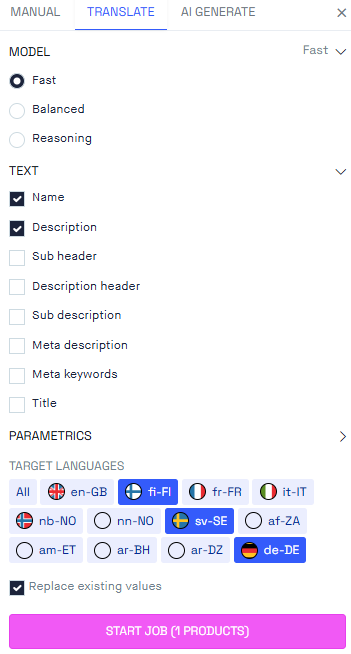
- Open the Translate tab.
- Select the AI model: Fast, Balanced or Reasoning.
- Check the text fields you want to translate. Expand Parametrics to also select text and HTML parametrics.
- Select the cultures you want to translate into.
- Decide whether to check Replace Existing Values:
- Unchecked (default): fields that already have text in the target culture are skipped. The job only fills in what is missing.
- Checked: existing translations are overwritten with the new translation, even when the target culture field already contains text. Use this when you know there is a reason to translate again, for example when you have updated the source text in the original culture.
- Click Start Job and confirm in the dialog that appears.
Generate product texts with AI enrichment
The AI Generate tab in the Norce batch update pane generates new text for the selected products.
The AI Generate tab only lists built-in text fields and text or HTML parametrics that have an AI Instruction configured. If the list is empty, no AI instructions have been set yet — see Configure AI instructions on fields.
To run a text generation job:
- In the product list, select the products to generate text for and click Update to open the batch update pane.
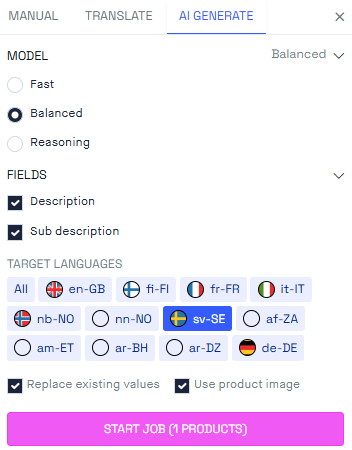
- Open the AI Generate tab.
- Select the AI model: Fast, Balanced or Reasoning.
- Check the text fields you want to generate. Expand Parametrics to also select text and HTML parametrics.
- Select the Target Language to generate the text in.
- Set the options:
- Replace Existing Values — unchecked (default) means fields that already contain text in the target language are skipped. Check it when you always want to generate new text, replacing whatever is already there.
- Use Product Image — sends the Main Image of the product along as context in the prompt. The model can then take details from the image into account, such as the colour of the product, the style of the image, or text that appears in the image.
- Click Start Job and confirm in the dialog that appears.
Review and publish an AI enrichment job
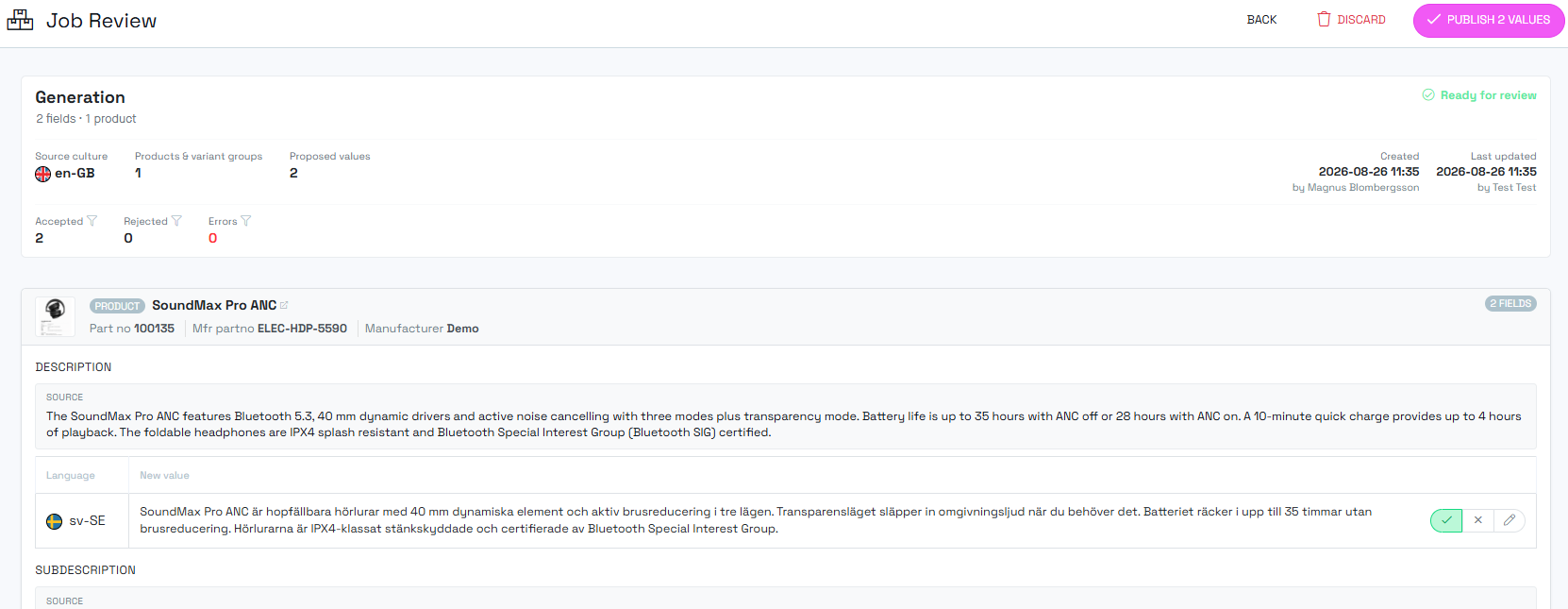
Nothing is written to your product data until you publish the AI enrichment job. When you start an AI enrichment job in Norce batch update, the job review view opens and shows the progress of the job in real time as the products are processed.
For each product and field, the job review view shows:
- The source value used as input.
- The suggested New Value produced by the AI.
Every suggested value is accepted by default, shown by a green check mark next to New Value. For each suggestion you can:
- Leave it as accepted — no action needed.
- Click the cross to reject the suggestion. Rejected values are not written to the product.
- Click the pencil to edit the suggested text manually, then click Save and Accept. The suggestion returns to the accepted state with your edited text.
When you are satisfied with the result, click Publish in the top right corner to write the accepted values to your products. If you are not satisfied with the result, click Discard to discard the whole job without writing anything.
Follow up AI enrichment jobs in the jobs list
All AI enrichment jobs are listed under Products in the Norce admin UI. The jobs list shows, for each job:
- A short description of the job.
- The status of the job.
- When the job was run.
- Which user initiated the job.
An AI enrichment job can have the following statuses:
| Status | Meaning |
|---|---|
| Reviewready | The job has completed and the suggested values are waiting for you to review and publish them. |
| Discarded | The job was discarded and no values were written to the products. |
| Failed | The job did not complete. No values were written to the products. |
| Published | The accepted values from the job have been written to the products. |
Use the jobs list to return to a job with status Reviewready, or to see the history of AI enrichment work in your catalogue.

Configure AI enrichment in Settings
The general instructions that apply to all AI enrichment jobs in Norce are configured under Settings > AI. The page presents three sections on the same view: System prompt, Brand Voice and Culture Instructions.
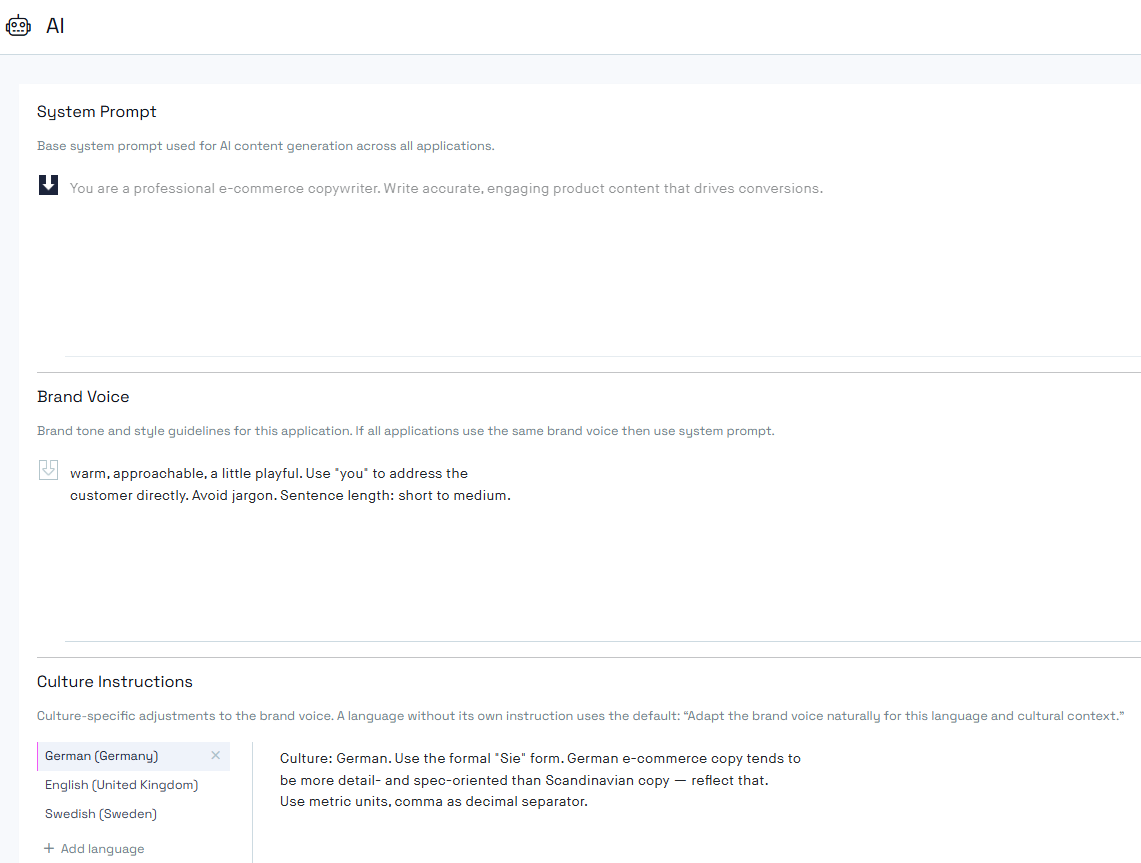
System prompt for AI enrichment
The System prompt section under Settings > AI holds the foundational instruction sent with every AI enrichment job. The default value is:
You are a professional e-commerce copywriter. Write accurate, engaging product content that drives conversions.Most customers leave the System prompt as it is. You can change it if you want the model to take a different role, for example a more technical or more editorial one. The System prompt is a single field, and overriding it overrides it for all AI enrichment runs.
Brand Voice for AI enrichment
The Brand Voice section under Settings > AI describes the tone and voice your product texts should be written in.
Brand Voice is application specific in AI enrichment. The instruction you write is stored on the application you are standing on in the admin UI. If your EU application has a different Brand Voice than your Swedish application, you must run the AI enrichment job from the application whose Brand Voice you want to apply. Before you start a job, make sure you are standing on the correct application in the admin UI.
Culture Instructions for AI enrichment
The Culture Instructions section under Settings > AI lets you review and set culture-specific instructions that are added to AI enrichment jobs for that culture. Use them for language conventions and market-specific messaging, for example:
- In Swedish, keep brand names and certain established terms in English, while in English you want everything translated.
- Different markets need the same message delivered in a different way, or with a different emphasis.
Configure AI instructions on fields
An AI Instruction on a field tells the AI what to produce for that specific field. An AI instruction is required for a field to be available in the AI Generate tab in Norce batch update. It is not required for translation.
AI instructions on built-in product text fields
Configure AI instructions on built-in text fields under Settings > Client > Components > Product Texts. This view lists all built-in product texts, where you both activate them for the admin UI and set their AI instruction.
- Go to Settings > Client > Components and open Product Texts.
- Click the gear icon on the text field you want to configure.
- A pop-up opens with Label, Help Text and AI Instruction.
- Write the AI instruction for the field and save.
When a field has an AI instruction, a small robot icon appears next to it in the list, showing a preview of the current instruction. Clicking either the gear icon or the robot icon opens the same pop-up.
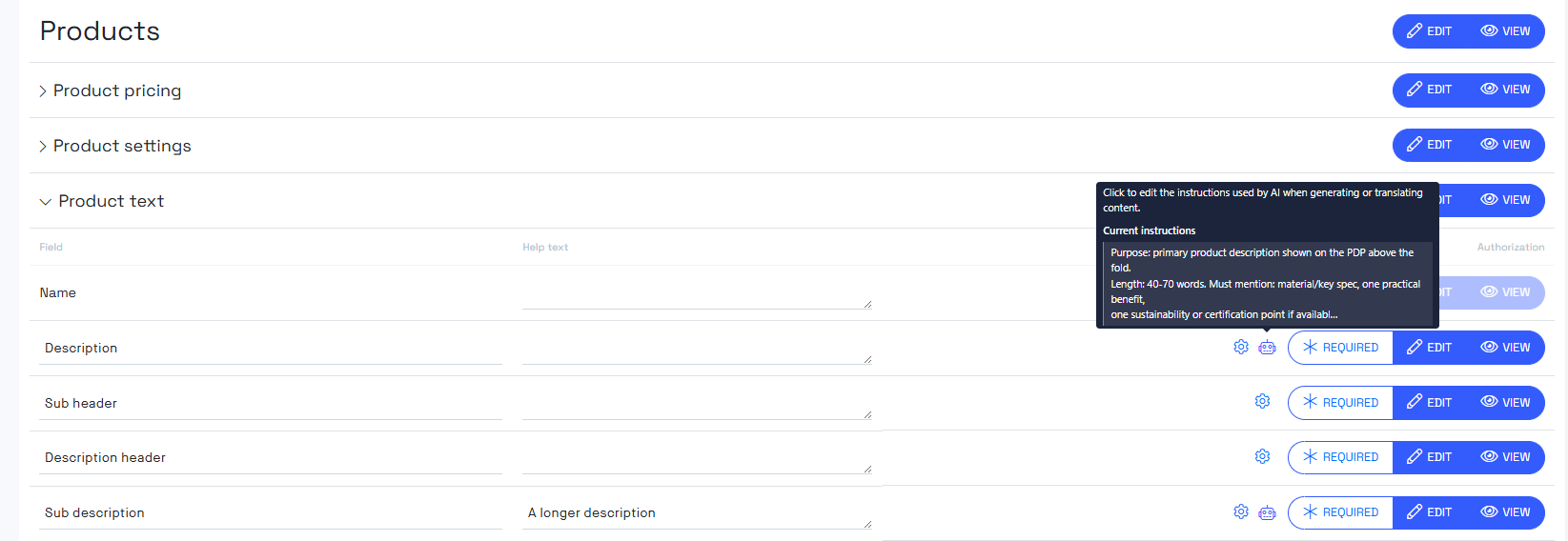
AI instructions on parametrics
Text and HTML parametrics support AI instructions in the same way as built-in text fields, and they work identically in AI enrichment jobs. Open the parametric under Parametrics and write the AI instruction on the text or HTML parametric.
Only parametrics of type Text or HTML can carry an AI instruction and be used with AI enrichment.
Writing AI instructions for AI enrichment
The quality of AI enrichment output depends almost entirely on the AI instruction you write on each field. This section covers how the instructions layer together, what to put in a field-level AI instruction, and ready-to-adapt examples per text field type.
How the instruction layers combine
An AI enrichment job assembles its prompt from several layers. Knowing which layer owns what keeps each AI instruction short and prevents you from repeating the same sentence on every field:
| Layer | Where it is configured | What it should contain |
|---|---|---|
| System prompt | Settings > AI, client-wide | The role and expertise of the writer, for example "You are a professional e-commerce copywriter." |
| Brand Voice | Settings > AI, per application | Tone, target group and brand-specific language rules. |
| Culture Instructions | Settings > AI, per culture | Language conventions and market-specific messaging. |
| AI Instruction | Per field, under Settings > Client > Components > Product Texts or on the parametric | What this specific field is, how long it may be, its format, and a format example if the field is structured. |
Because the System prompt and Brand Voice already carry role, tone and target group, the field-level AI instruction should stay focused on the field itself. Do not repeat the role or the tone in every field instruction.
What to include in a field-level AI instruction
Write each AI instruction with these parts:
- Task — what the text is, for example a short description, a technical specification, or an FAQ.
- Maximum length — the word or character count the generated text must stay within. State it explicitly; without it, generated text is often far longer than the field is designed for.
- Format — Norce text fields are usually plain text or HTML. Many models return Markdown unless you specify otherwise, so always state the format you want.
- Examples — for structured fields such as bulleted lists or FAQ, show the exact structure you want, and state how many items.
AI instruction examples per text field
The examples below are field-level AI instructions, written on the assumption that role and tone live in the System prompt and Brand Voice. Adapt the lengths and formats to your own fields.
Write a short description summarizing the clear customer benefits. The text should naturally answer the questions "What is it and why should I care?" Maximum 40 words.
Return text in simple HTML, not Markdown.
Get product data in place before generating text
AI Generate works from the product data that already exists on the product. Before running an AI enrichment job, import the raw product information you want the texts to be based on, either into parametrics or into a text field that is large enough, such as Description or Sub Description. Without source data on the product, generated texts stay generic.
Keep field AI instructions generic and let the product data supply the product-specific facts. That way the same instruction works across your whole catalogue.
To test your AI instructions before running them on real products, you can generate fictitious product data with any AI assistant using a prompt like this, and import it into a Description or parametric field on test products:
Help me create fictitious product data for various products, which I can use to test our product text generator.
The data should simulate unstructured product information from many different sources. This could be data sheets from a manufacturer or information from a PDM system. Our tool should be able to extract information from this for product texts, FAQs, selling points, etc.
I would like two product examples. The first is a sofa with a complicated internal product name. Materials, dimensions, maintenance, assembly information, weight, shipping weight, etc. The next product is an Android phone with a special focus on functionality for people with disabilities.
Generate product data, at least 2000 words for each.
Steering text per product segment
AI enrichment does not read category name or category description as prompt context in the first release. Category descriptions are not sent to the model, so writing instructions there has no effect on AI enrichment jobs.
To get segment-specific text, put the segment guidance in the layers AI enrichment does use — Brand Voice under Settings > AI, or the field-level AI Instruction.
Option 1: segment rules in Brand Voice. Brand Voice is sent with every AI enrichment job on the application, so it suits a small number of broad rules that apply across your catalogue:
Write in a warm, concrete and helpful tone. Never invent facts that are not in the product data.
Adapt the emphasis to the product segment:
- Furniture and interior products: emphasize comfort, materials, dimensions and maintenance.
- Electronics: emphasize functionality, compatibility, connectivity and energy efficiency.
- Consumables: emphasize contents, usage and reordering.
Option 2: segment rules in the field AI Instruction. A field-level AI Instruction gives you tighter control over one field at a time, and is the better place for structural rules such as which questions an FAQ should cover:
Write an FAQ for the product with 3-6 questions and answers, based on the product data. Maximum 60 words per answer, maximum 400 words in total. Return simple HTML, not Markdown.
Choose the questions based on the product segment:
- Furniture: measurements and fit, materials and maintenance, assembly, comfort and use, durability.
- Electronics: installation and startup, compatibility, features, performance and battery, updates, reliability.
Only include questions related to this specific product. Do not include delivery, return or warranty questions.
Because both options apply to every product in the job, run separate AI enrichment jobs per product segment when you need genuinely different instructions. Filter the product list to one segment, for example by category or product family, then start the job for that selection.
AI enrichment best practices
- Be specific in AI instructions — detailed, field-specific instructions yield better results than general ones.
- Import source data first — AI Generate can only work from the product data that exists on the product.
- Keep role and tone out of field instructions — they belong in the System prompt and Brand Voice under Settings > AI.
- Always state length and format — otherwise generated text is often too long and returned as Markdown.
- Test on a small selection first — run a job on a handful of products, review the output, adjust the AI instruction, then run the full result set.
- Check the application before starting a job — Brand Voice is application specific in AI enrichment.
- Review before publishing — every suggested value is accepted by default, so read through the job review view before clicking Publish.
Troubleshooting AI enrichment
No fields are listed in the AI Generate tab
The AI Generate tab in Norce batch update only lists fields that have an AI Instruction configured. If the list is empty, no AI instructions have been set yet. Configure them under Settings > Client > Components > Product Texts for built-in text fields, or on the individual text or HTML parametric. See Configure AI instructions on fields.
A field I want to work with is not listed in AI enrichment
Only fields of type Text or HTML can be used with AI enrichment. Fields of other types, such as numeric or list parametrics, cannot be translated or generated and are not listed in the Translate or AI Generate tabs in Norce batch update.
Products were skipped and no new value was suggested
By default, AI enrichment skips fields that already contain text in the target culture. Check Replace Existing Values if you want existing text to be overwritten. This applies to both the Translate tab and the AI Generate tab in Norce batch update.
The generated text does not match our brand voice
Brand Voice is application specific in AI enrichment. Verify that you are standing on the application that holds the Brand Voice you want to apply before you start the job, and that the Brand Voice instruction is written on that application under Settings > AI. See Configure AI enrichment in Settings.
Related documentation
- List products — filtering, selecting products and the batch update pane.
- Text and translation — the product text fields and manual translation on a single product.
- The Client Components tab — where AI instructions on built-in text fields are configured.